1. Overview
2. IEEE 802.11
This is the international standard that forms the foundation of the wireless local area network (WLAN) we call Wi-Fi today.
- Definition
- A collection of wireless communication specifications developed by the 11th working group of the IEEE (Institute of Electrical and Electronics Engineers) 802 committee
- Purpose
- Defines the physical layer (PHY) and medium access control (MAC) protocols so that wireless devices can communicate with each other and access the internet without cables
- Frequency bands
- Primarily uses the 2.4GHz and 5GHz frequency bands, and the latest standards also leverage the 6GHz band
- Relationship with Wi-Fi
- The Wi-Fi Alliance provides interoperability certification for products that comply with the 802.11 standard, and 'Wi-Fi' is the brand name used for products that have received this certification
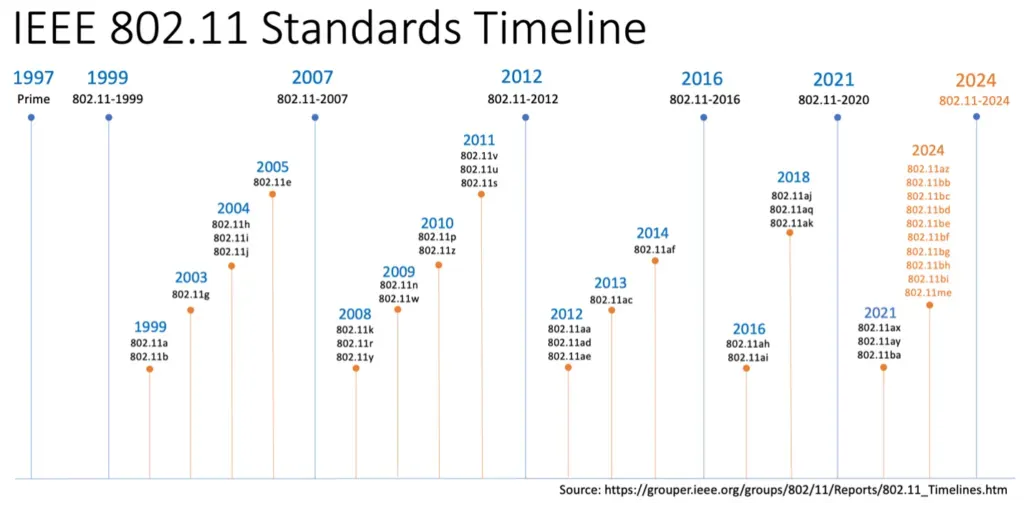
2.1 Major 802.11 Standards (Physical) and Features
The table below shows at a glance how Wi-Fi technology has evolved across generations.
Through the changes in speed, frequency bands, and core features, you can easily understand the characteristics and evolutionary direction of each standard.
| Wi-Fi Generation | IEEE Standard | Release Year | Frequency Band | Max Theoretical Speed | Key Features |
|---|---|---|---|---|---|
| Wi-Fi 1 | 802.11b | 1999 | 2.4GHz | 11 Mbps | First widely adopted standard |
| Wi-Fi 2 | 802.11a | 1999 | 5GHz | 54 Mbps | Introduced the 5GHz band |
| Wi-Fi 3 | 802.11g | 2003 | 2.4GHz | 54 Mbps | Improved speed on 2.4GHz |
| Wi-Fi 4 | 802.11n | 2009 | 2.4GHz/5GHz | 600 Mbps | MIMO technology, dual-band support |
| Wi-Fi 5 | 802.11ac | 2013 | 5GHz | 3.5 Gbps | Gigabit speeds, 5GHz only |
| Wi-Fi 6 | 802.11ax | 2019 | 2.4GHz/5GHz | ~9.6 Gbps | OFDMA, high efficiency, improved multi-device performance |
| Wi-Fi 6E | 802.11ax | 2021 | 2.4GHz/5GHz/6GHz | ~9.6 Gbps | Added 6GHz band support |
| Wi-Fi 7 | 802.11be | 2024 (planned) | 2.4GHz/5GHz/6GHz | Up to 40 Gbps | Ultra-fast, wider channel bandwidth |
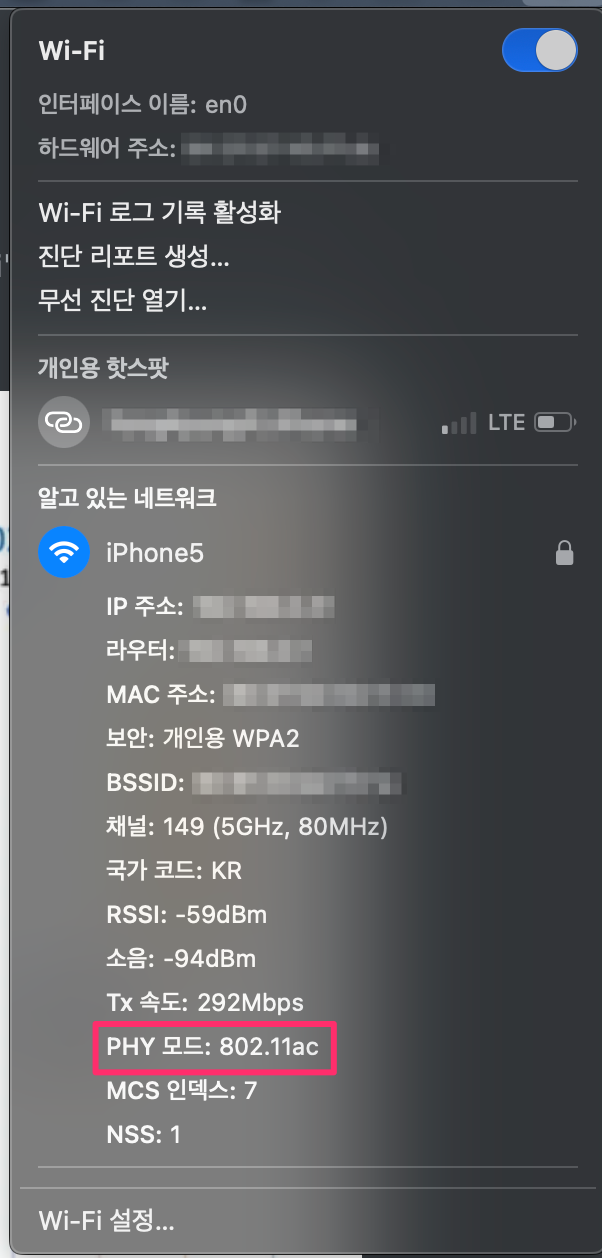
Which Wi-Fi model do you use at home? Using the 802.11ac standard
On a Mac, you can see detailed information by clicking Wi-Fi while holding
Opt
Along with 802.11r, which we covered last time, we will also look at the 802.11k standard that was published in the same year.
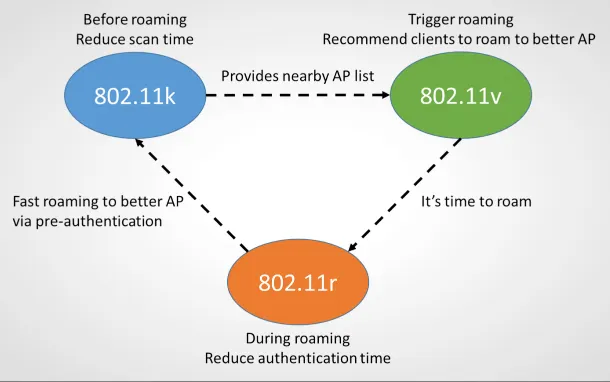
Reference: Roaming in 802.11k/v/r Wi-Fi
3. 802.11k (AP Assisted Roaming)
802.11k is a Radio Resource Measurement standard that helps mobile devices easily find a neighboring AP with a better signal. Thanks to this standard, a device can know the list of nearby APs in advance, so it can roam to the optimal AP faster than with the traditional method. In other words, 802.11k lets a device select an AP more efficiently, improving Wi-Fi performance and stability.
- Purpose
- The main purpose is to keep a client from going through an inefficient scanning process to find the optimal
AP(access point), thereby reducing the time spent roaming and battery consumption
- The main purpose is to keep a client from going through an inefficient scanning process to find the optimal
- Key Features and Benefits
- Providing neighbor
APinformation- Normally, when the signal strength weakens, a client scans all available channels to find a new
AP. AnAPthat supports802.11kprovides, upon client request, a Neighbor Report (Neighbor List) containing the list of nearbyAPs along with information such as their signal strength, channel utilization, and traffic load
- Normally, when the signal strength weakens, a client scans all available channels to find a new
- Fast scanning and efficient roaming
- Since the client only needs to scan within the provided list rather than scanning all channels, the time it takes to switch to the next
APis greatly reduced
- Since the client only needs to scan within the provided list rather than scanning all channels, the time it takes to switch to the next
- Load balancing
- Prevents clients from concentrating on the
APwith the strongest signal and instead directs connections to otherAPs with lower network load, improving network efficiency
- Prevents clients from concentrating on the
- Reduced power consumption
- By reducing the unnecessary full-channel scanning process, it helps save the battery life of mobile devices
- Providing neighbor
- Disadvantages
- Network overhead (minor)
802.11kexchanges additional management messages (Neighbor Report requests and responses) between the client and theAP. This overhead is usually negligible, but it can be a consideration in extremely congested environments
- Compatibility issues (requires both client and
AP)802.11konly works when both theAPand the client device (smartphone, laptop, etc.) support this standard
- Network overhead (minor)
4. How It Works
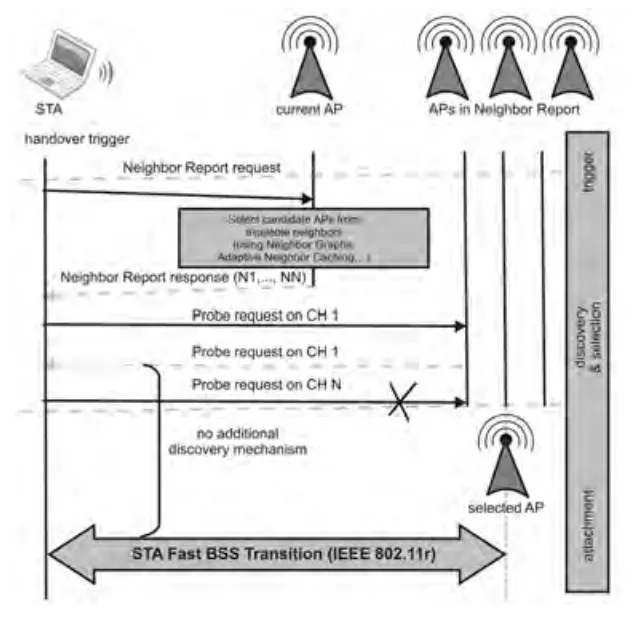
802.11k works by sharing information about the surrounding wireless environment between the AP and the client device. The main steps are as follows.
- When roaming is triggered
- When the client's signal strength drops below a certain threshold (when moving away from the connected
AP), it determines that the current connection is unstable and proactively prepares to roam - The currently connected
APcan direct the connected device to anotherAPif traffic becomes excessively concentrated
- When the client's signal strength drops below a certain threshold (when moving away from the connected
- Requesting the neighbor
APlist (Neighbor Request)- When the current signal strength weakens or roaming is needed, the client requests the list of
APs adjacent to the currentAP
- When the current signal strength weakens or roaming is needed, the client requests the list of
- Providing the report
- In response to the request, the
APprovides a Neighbor Report containing detailed information about nearbyAPs, such as signal quality, available resources, and channel utilization
- In response to the request, the
- Selecting the optimal
AP- Based on this report, the client can quickly decide on the optimal
APto connect to next, without having to search every channel one by one (which is time-consuming and drains the battery)
- Based on this report, the client can quickly decide on the optimal
- Fast roaming
- Because the client knows the optimal
APinformation in advance, roaming latency is reduced and the connection quality of latency-sensitive applications such as VoIP calls is improved
- Because the client knows the optimal
4.1 Reference: Handover Procedure
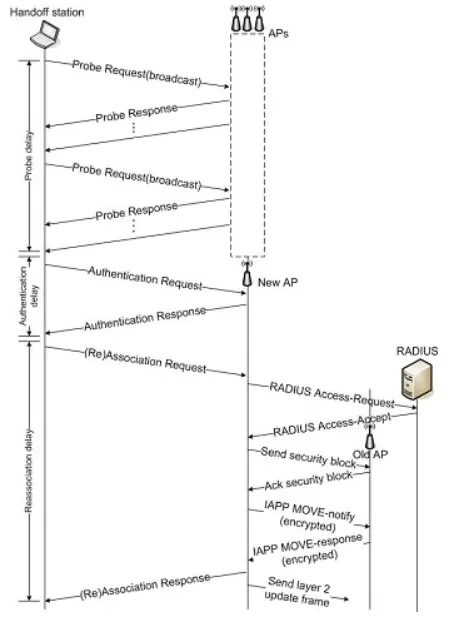
Reference: IEEE 802.11 Specification and Handover Procedure
The procedure that takes place when a STA moves to a new AP is as follows.
APdiscovery (Scanning phase)
To move to a better AP, the STA must first gather information about nearby APs.
The AP discovery process
- The
STAsends a Probe Request to actively discover whether anAPexists - The
APresponds with a Probe Response, providing the following information- Supported rates, SSID, channel information, security settings
- Based on the scan results, it builds a candidate
APlist (the pre-802.11k method)ActivevsPassiveScanning - see the Terminology section
- Authentication
This is the phase where the AP determines whether the STA is a user permitted to connect.
STA→AP: Sends an Authentication RequestAP→STA: Authentication Response (allow or deny)- In an Enterprise environment, additional authentication can be performed by a RADIUS server
- Only on successful authentication does it proceed to the next phase (Association)
- Association - the phase where an actual connection relationship is established with the
AP
This is the phase where the STA sets up a connection with the selected AP that allows actual data transmission and reception.
STA→AP: Sends an Association Request- SSID
- Supported rates
- Security settings
- Conveys required features (e.g., whether 11k/11r is supported)
AP→STA: Association Response- When the connection is allowed: the
APissues an AID (Association ID) to theSTA - Allocates required resources and synchronizes time
- When the connection is allowed: the
- Internally, the
AP- Synchronizes the
STAwith the wireless controller (WLC) or AAA server - May notify the previous
APof theSTA's move via IAPP, etc.
- Synchronizes the
- Connection to the new
APcomplete
- The
STAis fully connected to the newAPand can start normal communication
Reference: IEEE 802.11 Specification and Handover Procedure
Who creates the Neighbor List?
4.2 WLC - Centralized Network Management System
In most enterprise or large-scale Wi-Fi environments, APs are managed by a central Wireless LAN Controller (WLC) system.

Reference: https://404notonc.tistory.com/153
When you enable the 802.11k feature in the WLC (Wireless LAN Controller) settings, the AP and the WLC cooperate to efficiently generate the Neighbor Report (Neighbor List).
This process operates as a hybrid approach that combines periodic information exchange with dynamic generation upon client request, and the specific implementation may differ slightly among network equipment manufacturers (Cisco, Aruba, Juniper, etc.)
1. Periodic information exchange (Neighbor caching)
For network efficiency, instead of generating a completely new list immediately each time, APs collect the necessary information in advance.
APmeasurement and reporting- When
802.11kis enabled, each individualAPperiodically scans the surrounding channels and measures information such as the signal strength, channel information, and BSSID of neighboringAPs
- When
- Sending information to the
WLC- The
APreports these measurement results to theWLC
- The
- The
WLCbuilds a Neighbor Database- The
WLCaggregates the information received from allAPs connected to the network to build a centralized neighborAPdatabase (Neighbor Database) or cache
- The
2. Response upon client request (dynamic generation and lookup)
When an actual client needs to roam, the WLC responds quickly using the cached information.
- The client's Neighbor Request
- For roaming, the client sends an
802.11kneighbor request message (Neighbor Request) to the currently connectedAP
- For roaming, the client sends an
- The
WLCgenerates a response- The
APthat received the request forwards it to theWLC - The
WLClooks up the previously built database (cache) and dynamically generates an optimized neighborAPlist that takes into account the client's location and current state
- The
- Delivery to the client
- The
WLCdelivers this list (Neighbor Report) back to the client through theAP
- The
References
- Chapter 11 - 802.11r, 802.11k, 802.11v, 802.11w Fast Transition Roaming
- Cisco Wireless Network Architecture
- Adaptive Neighbor Caching for Fast BSS Transition Using IEEE 802.11k Neighbor Report
Information included in the Neighbor Report
Information Item Description BSSID The unique MAC address of the neighboring APChannel Information The wireless channel currently used by the neighboring APReceived Signal Strength Indicator (RSSI) The signal strength of the neighboring APas measured by the client deviceOperating Class and PHY Type Operational details such as the AP's operating frequency band (e.g., 2.4GHz, 5GHz, 6GHz) and supported physical layer (PHY) types (e.g., 802.11n, 802.11ac, 802.11ax)Capability Information Contains information elements (IEs) indicating the features supported by the AP(e.g., security methods, roaming support protocols, etc.)
5. Performance Comparison
Not found
6. How to Configure and Use 802.11k
- It can only be used if both the
APand the Client support 802.11k- Even if the
APsupports it, it must be enabled in theWLCadministrator web UI - If the Client Wi-Fi device supports 802.11k, it detects that this feature is enabled on the
APand automatically uses it without additional activation
- Even if the
7. Does the Client Wi-Fi device also support 802.11k?
> sudo lspci -k | grep -A3 -i network
[sudo] password for around:
02:00.0 Ethernet controller: Intel Corporation I211 Gigabit Network Connection (rev 03)
	Subsystem: Intel Corporation I211 Gigabit Network Connection
	Kernel driver in use: igb
	Kernel modules: igb
03:00.0 Ethernet controller: Intel Corporation I211 Gigabit Network Connection (rev 03)
	Subsystem: Intel Corporation I211 Gigabit Network Connection
	Kernel driver in use: igb
	Kernel modules: igb
04:00.0 Network controller: Intel Corporation Wi-Fi 6 AX200 (rev 1a)
	Subsystem: Intel Corporation Wi-Fi 6 AX200
	Kernel driver in use: iwlwifi
	Kernel modules: iwlwifi
- Checking in the spec document - the Intel AX200 does support it
- Reference: Intel Wi-Fi 6 AX200 Module

- How to check via command
# The iw command is used on linux to configure wireless devices and display information
# phy capability information
> iw phy | grep RRM
     * [ RRM ]: RRM
# RRM stands for Radio Resource Management, meaning it supports the feature set that includes the 802.11k standard
8. Does the AP support 802.11k?
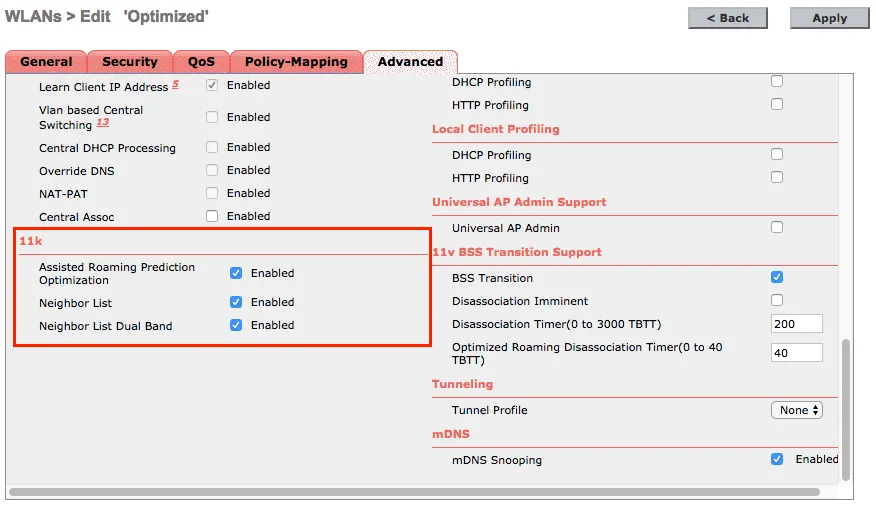
- The
APmust support it, and it must be enabled in the administrator admin UI- Assisted Roaming Prediction Optimization: a feature for clients that do not support 802.11k
- How to check by capturing the network

9. FAQ
9.1 Is it okay to configure and use multiple Wi-Fi roaming standards at the same time?
- Most real-world enterprise/industrial Wi-Fi setups use them together, since each has a different role and they complement each other
9.2 What kind of network is used at drone events?
- At a drone show event, Wi-Fi is used as the primary network, but due to stability and bandwidth concerns, it is combined with a mesh network, dedicated RF (radio frequency), or a multi-radio combination
- Wi-Fi based (primary):
- High-performance 5GHz
APs (e.g., Ubiquiti XGAP, supporting 100-150 units) transmit telemetry/commands between the ground station (GCS - Ground Control System) and the drones - 2.4GHz is used only in a limited way due to heavy interference
- High-performance 5GHz
- Mesh network
- P2P communication between drones reduces dependence on the central ground station, and strengthens collision avoidance/synchronization
- Local decision-making via edge computing
- Dedicated RF + multi-radio
- Simultaneous use of dedicated 900MHz/2.4GHz wireless modules in addition to Wi-Fi
- The entire show file is uploaded in advance, enabling offline flight (minimizing real-time control)
- Backup/redundancy: GNSS/RTK positioning + 5G (the latest trend) for 0ms-latency synchronization
- Wi-Fi based (primary):
9.3 PSK, PMK, PTK - these terms are confusing; how are they actually used in the authentication and roaming authentication flows?
-
A diagram that shows at a glance which keys are created and how they are passed in the robot (client) ↔
AP↔ authentication server (RADIUS) process, and which keys are reused during roaming- Common structure of WPA2-PSK and WPA2-Enterprise (EAP)
┌────────────────────────────┐ │ Robot (Client) │ └────────────────────────────┘ │ │ ① PSK input or EAP authentication ▼ PSK (password) → PMK generation EAP-TLS/EAP-PEAP → PMK generation │ ▼ ┌────────────────────────────┐ │ PMK (Pairwise Master Key)│ ← the core key reused during roaming └────────────────────────────┘ │ │ ② 4-Way Handshake with AP ▼ PTK (Pairwise Transient Key) generation GTK (Group Temporal Key) reception │ ▼ ─────────── Wi-Fi connection complete ─────────── │ │ ③ Robot moves → needs to switch to another AP ▼- 802.11r (FT) Fast Roaming structure
- When you configure an 802.11r environment, the robot does not need to regenerate the PMK when roaming between
APs → very fast switching
(Controller/CAPWAP or direct sharing between APs) ┌──────────────────────────────────────────┐ │ PMK-R0 (root key) │ └──────────────────────────────────────────┘ │ ┌─────────────┴─────────────┐ ▼ ▼ ┌─────────────────────┐ ┌─────────────────────┐ │ AP1 (R0KH / R1KH) │ │ AP2 (R0KH / R1KH) │ └─────────────────────┘ └─────────────────────┘ │ │ │ Robot moves │ │───────────────▶───────────│ ▼ ▼ Robot connected to AP1 Robot roams to AP2 ─────────────────── ─────────────────── 1) Generate PMK-R1 for AP1 from PMK-R0 1) Generate PMK-R1 for AP2 from PMK-R0 2) Generate PTK from PMK-R1 2) Generate PTK from PMK-R1 (new) 3) Connection maintained 3) Reconnect very quickly (in ms)- Integrated diagram showing the entire flow at once
The figure below shows the entire process at a glance, from PSK/EAP → PMK → PTK → FT roaming
                                  ┌────────────────────────────┐
                                  │   Authentication Server(EAP)│
                                  │      (RADIUS / 802.1X)      │
                                  └────────────────────────────┘
                                   ▲             │
                                   │EAP message  │ PMK delivery (Enterprise)
                                   │             ▼
      ┌────────────────────────────┐       ┌────────────────────────────┐
      │        Robot (Client)      │       │     AP1 (R0KH / R1KH)      │
      └────────────────────────────┘       └────────────────────────────┘
            │                                     │
            │1) PSK or EAP authentication         │
            ▼                                     │
      PMK generation  ◀────────────────────────────┘
            │
            │2) 4-Way Handshake (AP1)
            ▼
        PTK generation
            │
────────── Connection successful ──────────
            │
            │3) Robot moves → AP2 has a better signal
            ▼
      ┌────────────────────────────┐
      │     AP2 (R0KH / R1KH)      │
      └────────────────────────────┘
            ▲
            │4) 802.11r FT roaming request
            │   (reuse PMK-R1)
            ▼
      New PTK generation (fast reconnection)
────────── Roaming complete (in ms) ──────────
9.4 How can wireless network packets be captured?
10. Terminology
10.1 What is Wi-Fi roaming?
- Wi-Fi roaming is a technology where a mobile device automatically switches to a stronger
AP, and enabling 802.11r/k/v can greatly improve the switching speed and stability 802.11r(Fast BSS Transition: fastAPswitching)- FT is a feature where a Wi-Fi client reconnects quickly when roaming between
APs by optimizing the handshake process instead of repeating the existing authentication procedure - Fast BSS Transition skips the authentication process, reducing handover time to within 50ms. Fast switching based on k/v information
- FT is a feature where a Wi-Fi client reconnects quickly when roaming between
802.11k(Radio Resource Measurement)- By providing nearby
APinformation (neighbor report), the robot identifies optimalAPcandidates without scanning. Automatically triggers802.11vactivation
- By providing nearby
802.11v(Wireless Network Management)- Through BSS transition management, the network instructs the robot to "move to a better
AP". Optimizes load balancing and roaming triggers.
- Through BSS transition management, the network instructs the robot to "move to a better
| Feature | 802.11r (Fast BSS Transition) | 802.11k (Radio Resource Measurement) | 802.11v (Wireless Network Management) |
|---|---|---|---|
| Main purpose | Fast roaming (skip authentication) | Provide nearby AP information (scan optimization) | BSS transition management and load balancing |
| Operating phase | At handover execution | Neighbor report collection before/after connection | Network optimization suggestions while connection is maintained |
| Core feature | - OKC (Opportunistic Key Caching) |
- Reduces authentication time by 50ms | - Neighbor Report
- Channel/signal strength information
- 90% ↓ in scan time | - BSS Transition Management
- "Move to a better
AP" request - Load balancing | | Robot effect | Ping-pong handover ↓ | Unnecessary scans ↓, battery saving | Escape overloaded
AP, maintain stable connection | | Requirement | Same Mobility Domain (MDID) | Neighbor table configuration betweenAPs | Client consent required (some can refuse) | | Compatibility | Supported by most iOS/Android | Broadly supported (including legacy) | Mainly newer devices, some limitations |
10.2 Wireless Signal Terms
-
RSSI(Received Signal Strength Indicator)- Received signal strength
- The closer to 0, the stronger; below 90dBm is a very weak signal
- Used to determine how far the robot is from the
AP
-
SNR(Signal-to-Noise Ratio)-
The ratio of signal to noise
-
The higher the
SNR, the more stable (e.g., 30dB or higher is good) -
Example:
-
RSSI= -60 dBm -
Noise= -90 dBm→
SNR= 30 dB (good)
-
-
RSSIis the signal itself, whileSNRis the quality of the signal (relative to noise)
-
10.3 Wi-Fi Encryption/Key Terms
PSK(Pre-Shared Key)- A shared password (= the Wi-Fi password we enter)
- Used in WPA/WPA2-Personal mode
PMK(Pairwise Master Key)- The higher-level key generated during the PSK or EAP authentication process
- The core key actually used for Wi-Fi communication encryption is the PMK
- Derived from the PSK (password) (using HMAC-SHA1)
- The core of roaming: the PMK can be shared between
APs- The master key generated when a client connects to an
APin WPA/WPA2/later security modes
- The master key generated when a client connects to an
- Password (PSK) → generate encryption master key (PMK) → perform actual communication encryption
- The higher-level key generated during the PSK or EAP authentication process
PMKcaching (or PMKID)- PMK Caching or PMKID caching is a method where, after a client first authenticates/connects to an
AP, the generated PMK or PMKID is remembered or stored in the network, so that the full authentication procedure does not need to be repeated when roaming to anotherAP
- PMK Caching or PMKID caching is a method where, after a client first authenticates/connects to an
PTK(Pairwise Transient Key)- The actual data encryption key derived from the PMK
10.4 Wi-Fi Authentication Terms
-
EAP(Extensible Authentication Protocol) - a framework of authentication (login) methods-
A collection of various methods for performing 'user authentication' in
WPA- That is, it is the sub-protocol that determines how authentication is handled in
WPA
- That is, it is the sub-protocol that determines how authentication is handled in
-
An advanced authentication protocol used in enterprise/school Wi-Fi
-
For example, the following methods are EAP-based:
-
EAP-TLS (the strongest, based on public-key certificates)
-
PEAP (password-based + authentication inside a TLS tunnel)
-
EAP-TTLS (supports multiple authentication methods inside a TLS tunnel)
Item EAP-TLS PEAP EAP-TTLS Authentication method Client + server certificate TLS tunnel + password TLS tunnel + multiple auth methods Security ⭐⭐⭐⭐⭐ Highest ⭐⭐⭐ ⭐⭐⭐⭐ Certificate required Client + server Server only Server only Management difficulty Difficult Easy Medium Suitability for robots Best if certificate management is feasible Easiest Flexible, suitable for robots/IoT Windows support Very good Very good Limited
-
-
The authentication method used in WPA2-Enterprise environments
-
10.5 Security Protocols
-
WPA(Wi-Fi Protected Access: the overall Wi-Fi encryption standard / security specification)-
WPAis the overall security specification that defines how a Wi-Fi network is protected; it is the entire framework of Wi-Fi security -
That is,
WPAdefines things like:- Which encryption algorithm to use? (TKIP? AES?)
- How to authenticate? (password? authentication server?)
- How to manage keys? (4-way handshake)
- Roaming support? (802.11r)
-
WPA has 2 authentication modes
WPA Authentication Method Description Use Case PSK (Pre-Shared Key) The "Wi-Fi password" authentication method used at home WPA2-PSK EAP / 802.1X Authentication protocol via a corporate authentication server (RADIUS) WPA2-Enterprise
-
-
Types:
WPA→TKIPbased (the old method)WPA2→AESbased (the current standard)- WPA2-PSK (the password-based Wi-Fi used at home)
- WPA2-Enterprise (corporate Wi-Fi based on 802.1X/EAP)
- WPA3 → an enhanced, latest standard (uses SAE)
- WPA3-SAE
- WPA3-Enterprise
-
WPA is the name of the standard that defines "how to apply security in Wi-Fi", and PSK/PMK are the concepts of the encryption keys actually used within it.
10.6 BSSID (Basic Service Set Identifier)
- The MAC address of the
AP - The SSID is the Wi-Fi name, while the BSSID is the
APdevice ID
10.7 SSID (Service Set Identifier)
- The name by which a user identifies and connects to their Wi-Fi network
- What you see when you view the Wi-Fi list on a device is the SSID
10.8 Wi-Fi Band
- Refers to a specific frequency range allocated for wireless communication; the communication speed, range, and level of interference vary depending on this frequency band. The bands currently in common use are 2.4GHz, 5GHz, and the latest technology, 6GHz
10.9 Channel
- A channel refers to the specific frequency band that an
APuses for communication (e.g., channel 1, 6, 11 or 36, 149, etc.) - One
APusually uses one channel, or two channels (one in the 2.4GHz band, one in the 5GHz band)
10.10 Scanning
- Scanning refers to the process by which a device finds nearby Wi-Fi
APs and collects information needed to connect. This process is generally done in two ways- Passive Scanning: a method where the client quietly listens for the Beacon frames that an
APperiodically broadcasts to obtain information. Since it has to check all channels, it can take a long time - Active Scanning: a method where the client sends a Probe Request frame on a specific channel and the
APsends a Probe Response frame in return to obtain information. It is faster than passive scanning, but time can still be consumed in the process of scanning across multiple channels
- Passive Scanning: a method where the client quietly listens for the Beacon frames that an
10.11 WLC (Wireless LAN Controller)
-
The operating principle of the
WLC(Wireless LAN Controller) is centered on centralized management: it integrates control of multipleAPs (access points) from a single controller, configures SSID, security policies, channels, etc. in bulk, and automates load balancing, RF optimization, client roaming, and fault management to efficiently operate large-scale wireless networksMain operating principles
- Centralized control
- The administrator only needs to configure a single
WLCrather than individualAPs, and it distributes the same SSID, security (WPA3, 802.1X, etc.), and channel settings to allAPs
- The administrator only needs to configure a single
- Automatic
APdiscovery and configuration: when anAPconnects to theWLC, it is automatically assigned an IP and is configured by receiving configuration information from theWLC - Separation of control and data
- Control traffic: the
WLCmanages settings, state synchronization, authentication information, etc. between theAPand theWLC(e.g., the CAPWAP protocol). - Data traffic: the user's actual data (web browsing, file transfer, etc.) may be forwarded directly from the
APto the wired network (switch/router) without passing through theWLC, which is efficient (depends on the controller's location)
- Control traffic: the
- RF and performance management
- Channel optimization: automatically adjusts channels to avoid interference between adjacent
APs - Load balancing: distributes load so that clients do not crowd onto a particular
AP - Automatic failure recovery: if a problem occurs on a particular
AP, nearbyAPs automatically adjust to cover that area
- Channel optimization: automatically adjusts channels to avoid interference between adjacent
- Enhanced security: applies strong security protocols centrally and uniformly applies intrusion detection and access control policies to all
APs to strengthen network security
The
WLCcommunicates with theAPs to exchange control information, and client devices (laptops, smartphones, etc.) connect through theAPs to the wired network connected to theWLC - Centralized control
11. References
- https://wiki.navercorp.com/pages/viewpage.action?pageId=4265685224&spaceKey=RCWG&title=802.11r%2BFast%2BBSS%2BTransition
- https://www.cisco.com/c/ko_kr/support/docs/wireless/catalyst-9800-series-wireless-controllers/221671-understand-802-11r-11k-11v-fast-roams-on.html
- https://www.come-star.com/ko/blog/802-11r-vs-802-11k-vs-802-11v-wifi-roaming-protocols/
- https://en.wikipedia.org/wiki/IEEE_802.11k-2008
- 802.11r, 802.11k, and 802.11w Deployment Guide, Cisco IOS-XE Release 3.3
- https://mrncciew.com/2014/09/11/cwsp-802-11k-ap-assisted-roaming/
- https://www.shixuen.com/router/wifi_network_roaming.html
- https://www.slideshare.net/slideshow/mobile-devices-v15-final/32403571?from_search=4
12. Appendix
13. Commands
13.1 Printing the Wi-Fi Device Connection Status
This is a status query command used to check which AP/SSID the wlp4s0 interface is currently attached to and in what state.
wpa_cli- A CLI frontend tool for
wpa_supplicant - Lets you check the current authentication state, connected SSID, BSSID, pre-IP-assignment state, etc., and perform tasks such as reconnecting and scanning
- A CLI frontend tool for
sudo wpa_cli -i wlp4s0 status
bssid=##:##:##:##:##:##
freq=5180
ssid=######
id=0
mode=station
wifi_generation=6
pairwise_cipher=CCMP
group_cipher=CCMP
key_mgmt=WPA2-PSK
wpa_state=COMPLETED
ip_address=##.##.##.##
p2p_device_address=##:##:##:##:##:##
address=##:##:##:##:##:##
uuid=6f10a4a1-5f5e-5adb-8dd5-cc6934d05dae
ieee80211ac=1