1. Overview
OpenClaw is a self-hosted gateway that connects messaging apps such as WhatsApp, Telegram, and Discord to AI agents. By default a single agent handles all messages, but in real-world operations you often want to separate bots by purpose.
For example:
- Alert bot: delivers only server failure or deployment notifications
- Monitoring bot: analyzes system metrics and produces reports
- Assistant bot: handles everyday questions and tasks
OpenClaw's multi-agent feature makes this kind of setup possible. Each agent runs as a completely isolated, independent "brain" and can be managed from a single Gateway.
This article walks through how to configure multiple Telegram bots as OpenClaw multi-agents, step by step. The whole process proceeds in the following four steps.
- Create Telegram bots - Create as many bots as agents in BotFather
- Add agents - Register agents with the OpenClaw CLI
- Pass bot tokens - Hand the tokens to OpenClaw to auto-configure the bindings
- Verify and run - Check the agent list and channel status
For OpenClaw's basic concepts and installation, refer to the Complete OpenClaw Guide article.
2. Multi-Agent Architecture
2.1 Overall Structure
The core of a multi-agent system is that a single Gateway manages multiple agents and routes messages according to binding rules.
flowchart LR
    subgraph Telegram
        B1["🤖 alerts_bot"]
        B2["🤖 monitoring_bot"]
        B3["🤖 assistant_bot"]
    end

    subgraph Gateway
        R["Routing Engine\n(Bindings)"]
    end

    subgraph Agents
        A1["Agent: alerts\n(Claude Opus)"]
        A2["Agent: monitoring\n(Claude Sonnet)"]
        A3["Agent: assistant\n(Claude Haiku)"]
    end

    B1 --> R
    B2 --> R
    B3 --> R
    R --> A1
    R --> A2
    R --> A3
Each Telegram bot has an independent account (accountId) and is connected to a specific agent through binding rules.
2.2 Components of an Agent
Each agent has completely isolated components.
| Component | Path | Role |
|---|---|---|
| Workspace | ~/.openclaw/workspace-<agentId>/ | AGENTS.md, SOUL.md, USER.md, local files |
| State directory (agentDir) | ~/.openclaw/agents/<agentId>/agent/ | Auth profiles, model registry, agent settings |
| Session store | ~/.openclaw/agents/<agentId>/sessions/ | Conversation history |
Caution: never share the
agentDirbetween agents. Sharing it causes authentication conflicts.
2.3 Directory Structure
The actual multi-agent structure on the filesystem looks like this.
graph TD
    ROOT["~/.openclaw/"] --> CONFIG["openclaw.json"]
    ROOT --> WS1["workspace-alerts/"]
    ROOT --> WS2["workspace-monitoring/"]
    ROOT --> AGENTS["agents/"]

    WS1 --> WS1_A["AGENTS.md"]
    WS1 --> WS1_S["SOUL.md"]
    WS1 --> WS1_U["USER.md"]

    WS2 --> WS2_A["AGENTS.md"]
    WS2 --> WS2_S["SOUL.md"]
    WS2 --> WS2_U["USER.md"]

    AGENTS --> AG1["alerts/"]
    AGENTS --> AG2["monitoring/"]

    AG1 --> AG1_D["agent/"]
    AG1 --> AG1_S["sessions/"]
    AG1_D --> AG1_AUTH["auth-profiles.json"]

    AG2 --> AG2_D["agent/"]
    AG2 --> AG2_S["sessions/"]
    AG2_D --> AG2_AUTH["auth-profiles.json"]
Each agent's Workspace contains files that define the agent's character and role.
- AGENTS.md: the agent's instructions and tool settings
- SOUL.md: the agent's persona and personality
- USER.md: user information and preferences
3. Multi-Agent Configuration
3.1 Step 1 - Create Telegram Bots (BotFather)
In Telegram, chat with @BotFather and create as many bots as you have agents.
- Send the
/newbotcommand to BotFather - Enter the bot name (e.g.,
My Alert Bot) - Enter the bot username (e.g.,
my_alert_bot) - Store the issued bot token securely
Repeat this process for the number of bots you need. For example, if you plan to run three agents, create three bots.
# Example tokens received from BotFather
alerts_bot:     123456:ABC-DEF1234ghIkl-zyx57W2v1u123ew11
monitoring_bot: 987654:XYZ-UVW9876tgHjk-abc34V3w9z456ty22
assistant_bot:  111222:GHI-JKL5678mnOpq-rst12X4y6z789ab33
3.2 Step 2 - Add Agents
Add each agent with the OpenClaw CLI.
openclaw agents add alerts
openclaw agents add monitoring
openclaw agents add assistant
Each command automatically creates the following.
- Workspace directory (
~/.openclaw/workspace-<agentId>/) - State directory (
~/.openclaw/agents/<agentId>/agent/) - Session store (
~/.openclaw/agents/<agentId>/sessions/)
When you actually run openclaw agents add, an interactive wizard runs.
$ openclaw agents add proj-photo

🦞 OpenClaw 2026.2.17 (4134875) — The UNIX philosophy meets your DMs.

┌  Add OpenClaw agent
│
◇  Workspace directory
│  /Users/user/.openclaw/workspace-proj-photo
│
◇  Copy auth profiles from "main"?
│  Yes
│
◇  Auth profiles ─────────────────────╮
│                                     │
│  Copied auth profiles from "main".  │
│                                     │
├─────────────────────────────────────╯
│
◇  Configure model/auth for this agent now?
│  Yes
│
◇  Model/auth provider
│  Anthropic
│
◇  Anthropic auth method
│  Anthropic token (paste setup-token)
│
◇  Paste Anthropic setup-token
│  sk-ant-oat01-****
│
◇  Token name (blank = default)
│  proj-photo
│
◇  Configure chat channels now?
│  Yes
│
◇  Select a channel
│  Finished
│
└  Agent "proj-photo" ready.
Workspace, auth profiles, and model settings are all completed in one go.
3.3 Step 3 - Pass the Bot Tokens to OpenClaw
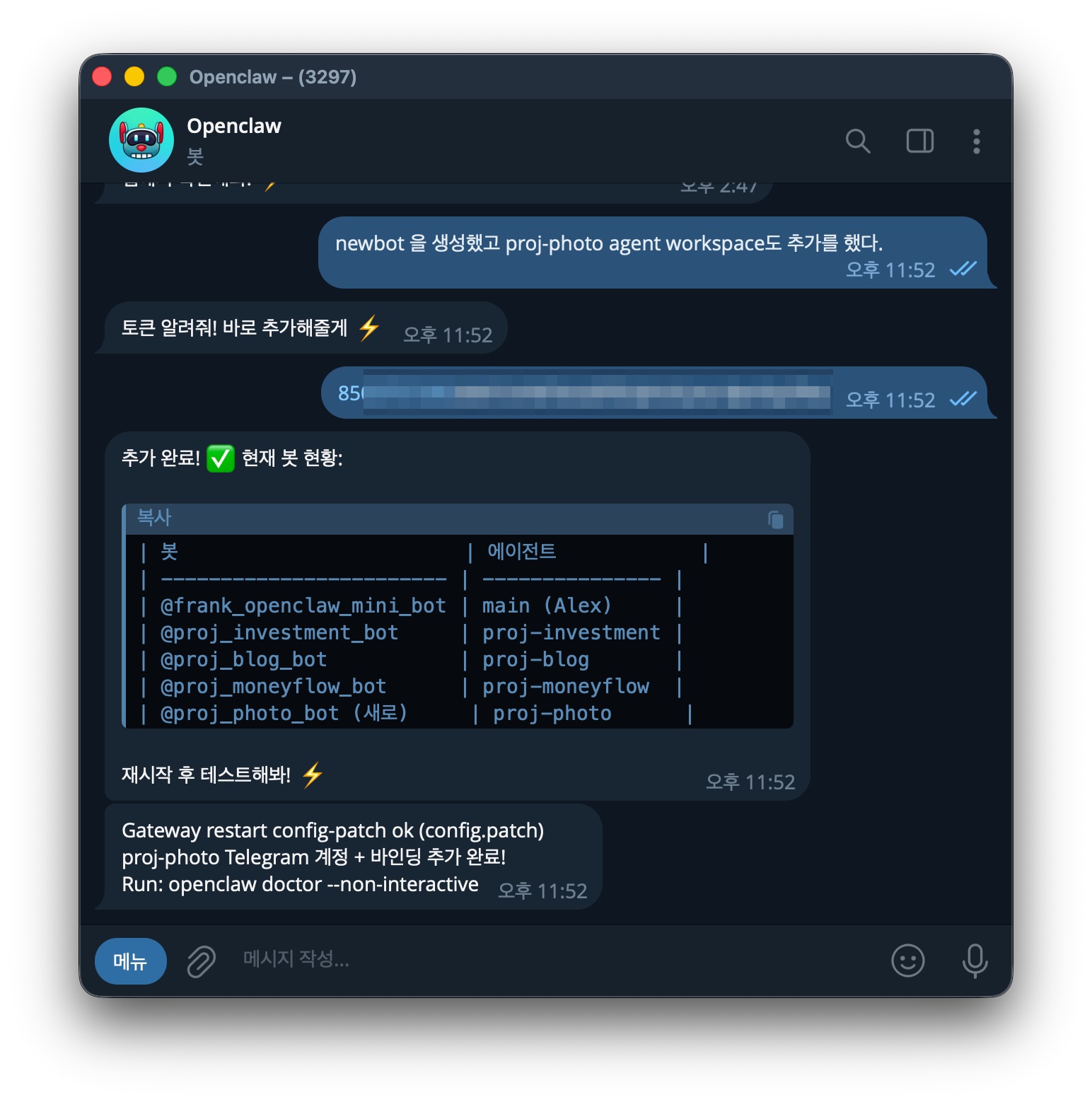
You don't need to edit openclaw.json directly. In the OpenClaw chat window (Dashboard or Telegram), tell it that you added a new bot and hand over the token; OpenClaw will add the configuration on its own and restart the Gateway.
User: "I added a new Telegram bot. Its name is alerts_bot and the token is 123456:ABC-DEF1234..."
OpenClaw: Configuration added → Gateway automatically restarted
Actual workflow:
- Create a bot in BotFather → copy the token
- Pass the token in the OpenClaw chat window
- OpenClaw handles it automatically:
- Adds the agent and Telegram account to
openclaw.json - Creates binding rules
- Restarts the Gateway
- Adds the agent and Telegram account to
Below is what passing a bot token actually looks like in the OpenClaw Telegram chat window. Once you hand over the token, OpenClaw automatically adds the configuration and shows the bot status.
3.4 Understanding the openclaw.json Structure
OpenClaw generates the configuration automatically, but understanding the internal structure helps with customization and troubleshooting. openclaw.json consists of three main sections.
3.4.1 agents Section
Defines each agent (AI brain). You can assign an independent workspace and model to each agent.
{
  agents: {
    list: [
      {
        id: "alerts",
        name: "Alert Agent",
        workspace: "~/.openclaw/workspace-alerts",
        agentDir: "~/.openclaw/agents/alerts/agent",
        model: "anthropic/claude-opus-4-6",
      },
      {
        id: "monitoring",
        name: "Monitoring Agent",
        workspace: "~/.openclaw/workspace-monitoring",
        agentDir: "~/.openclaw/agents/monitoring/agent",
        model: "anthropic/claude-sonnet-4-5",
      },
      {
        id: "assistant",
        name: "Assistant Agent",
        workspace: "~/.openclaw/workspace-assistant",
        agentDir: "~/.openclaw/agents/assistant/agent",
        model: "anthropic/claude-haiku-4-5",
      },
    ],
  },
}
Since each agent can use a different model, you can tune performance and cost to fit each purpose.
3.4.2 channels Section
Configures Telegram bot tokens and access policies.
{
  channels: {
    telegram: {
      accounts: {
        alerts_bot: {
          botToken: "123456:ABC-DEF1234ghIkl-zyx57W2v1u123ew11",
          dmPolicy: "pairing",
        },
        monitoring_bot: {
          botToken: "987654:XYZ-UVW9876tgHjk-abc34V3w9z456ty22",
          dmPolicy: "allowlist",
          allowFrom: ["tg:123456789"],
        },
        assistant_bot: {
          botToken: "111222:GHI-JKL5678mnOpq-rst12X4y6z789ab33",
          dmPolicy: "open",
          allowFrom: ["*"],
        },
      },
    },
  },
}
dmPolicy controls who can send DMs to a bot.
| dmPolicy | Description |
|---|---|
pairing | Only users who enter the pairing code can chat (default) |
allowlist | Only users registered in allowFrom can chat |
open | Anyone can chat (allowFrom: ["*"] required) |
disabled | DM disabled |
3.4.3 bindings Section
Defines the routing rules for which bot's messages go to which agent.
{
  bindings: [
    {
      agentId: "alerts",
      match: { channel: "telegram", accountId: "alerts_bot" },
    },
    {
      agentId: "monitoring",
      match: { channel: "telegram", accountId: "monitoring_bot" },
    },
    {
      agentId: "assistant",
      match: { channel: "telegram", accountId: "assistant_bot" },
    },
  ],
}
When you need advanced settings such as changing dmPolicy, swapping models, or refining bindings, you can edit this file directly.
3.5 Step 4 - Verify and Run
Once the configuration is complete, verify it with the following commands.
# Check the agent list and bindings
openclaw agents list --bindings

# Check channel status (verify bot token validity)
openclaw channels status --probe

# Restart the Gateway (when changing settings manually)
openclaw gateway restart
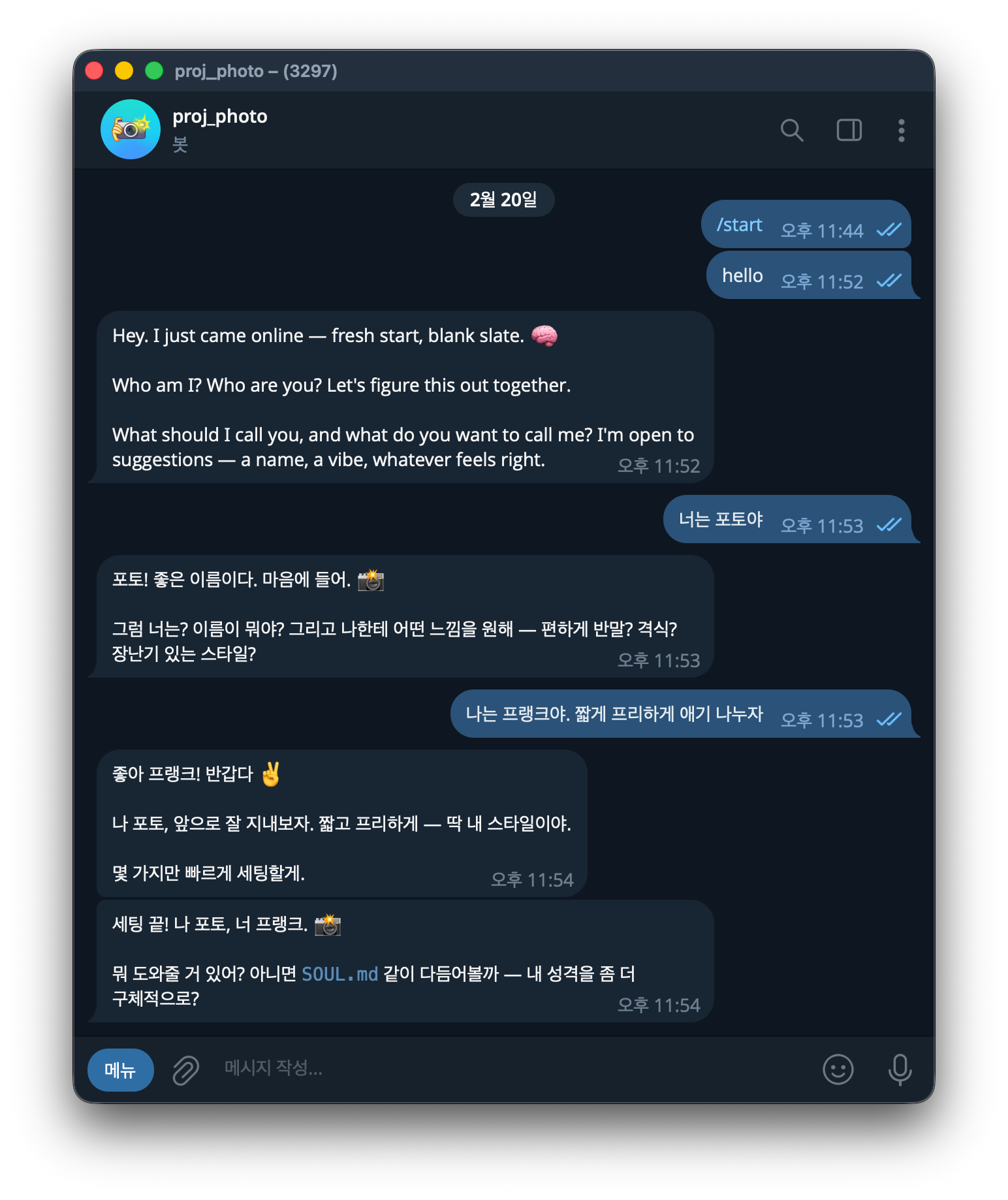
If everything is set up correctly, sending a message to each Telegram bot will get a response from the corresponding agent. Below is what an actual conversation with a newly added bot looks like.
4. Conclusion
With OpenClaw's multi-agent feature, you can run multiple Telegram bots independently from a single Gateway. To summarize the key points:
- Each agent is an independent AI brain with completely isolated Workspace, agentDir, and sessions
- Create bots in BotFather and just hand the tokens to OpenClaw for automatic configuration
- Binding rules route messages to agents, allowing branching per bot, per user, or per group
- Use a different AI model per agent to optimize performance and cost
Multi-agent isn't just about creating several bots; it's about giving each bot a specialized role and context. A well-designed agent separation raises both response quality and operational efficiency at the same time.