1. Dockerize Python Application
Let's look at how to build a Python application into a Docker image. The dockerizing process creates a Docker image through a similar process regardless of the development language. Below is Python code that prints Hello World to the screen. Let's build a Docker image from this code.
#!/usr/bin/env python3

print('Hello World')
1.1 Creating a Dockerfile
Docker can build an image by reading the Dockerfile and executing the commands written in it.
FROM python:3.8-slim-buster
WORKDIR /root
ADD main.py .
CMD ["python3, main.py"]
FROM: specifies the Docker image to use as the base imageWORKDIR: specifies the working directory of the containerADD: adds files when building the image- CMD : specifies the command to run when the container starts
There are three Python base images you can use. Their differences are as follows.
python:3.9-bustera version with most of the necessary packages installedpython:3.9-slim-buster: a version with everything excluded except the standard librarypython:3.9-alpine: a version that includes BusyBox Linux + the apk package manager
The alpine base image is a lightweight version provided for many development languages and is widely used. For simple Python, it's fine to use the alpine image, but depending on the libraries the application uses, alpine by default does not support linux wheel, so a separate build may be required. To dockerize directly without going through such a build process, I recommend choosing buster or slim-buster as the base image.
1.1.1 References
- https://nayoungs.tistory.com/m/entry/Docker-Python-%EC%8A%A4%ED%81%AC%EB%A6%BD%ED%8A%B8%EB%A5%BC-%EC%8B%A4%ED%96%89%ED%95%98%EB%8A%94-Docker-%EC%9D%B4%EB%AF%B8%EC%A7%80-%EB%B9%8C%EB%93%9C%ED%95%98%EA%B8%B0
- https://pythonspeed.com/articles/alpine-docker-python/
- https://jx2lee.github.io/cloud-base-image-with-python/
1.1.2 Building the Docker Image
Since my personal MacBook is an M1 version, I add the platform option when building.
REGISTRY 	:= kenshin579
APP    		:= advenoh
TAG         := python-hello
IMAGE       := $(REGISTRY)/$(APP):$(TAG)
PLATFORM	:= linux/x86-64

.PHONY: docker-build
docker-build:
	@docker build --platform $(PLATFORM) -t $(IMAGE) -f Dockerfile .

.PHONY: docker-push
docker-push: docker-build
	@docker push $(IMAGE)
To make repeated builds easier, write a Makefile like the one above and run make, or if you want to upload the image directly to Docker Hub, run it with the docker-push option.
$ make docker-build
$ make docker-push
1.2 Running the Docker Image
Let's print Hello World with docker run.
$ docker run --platform linux/x86-64 kenshin579/advenoh:python-hello
Hello World
2. Flask Web Application
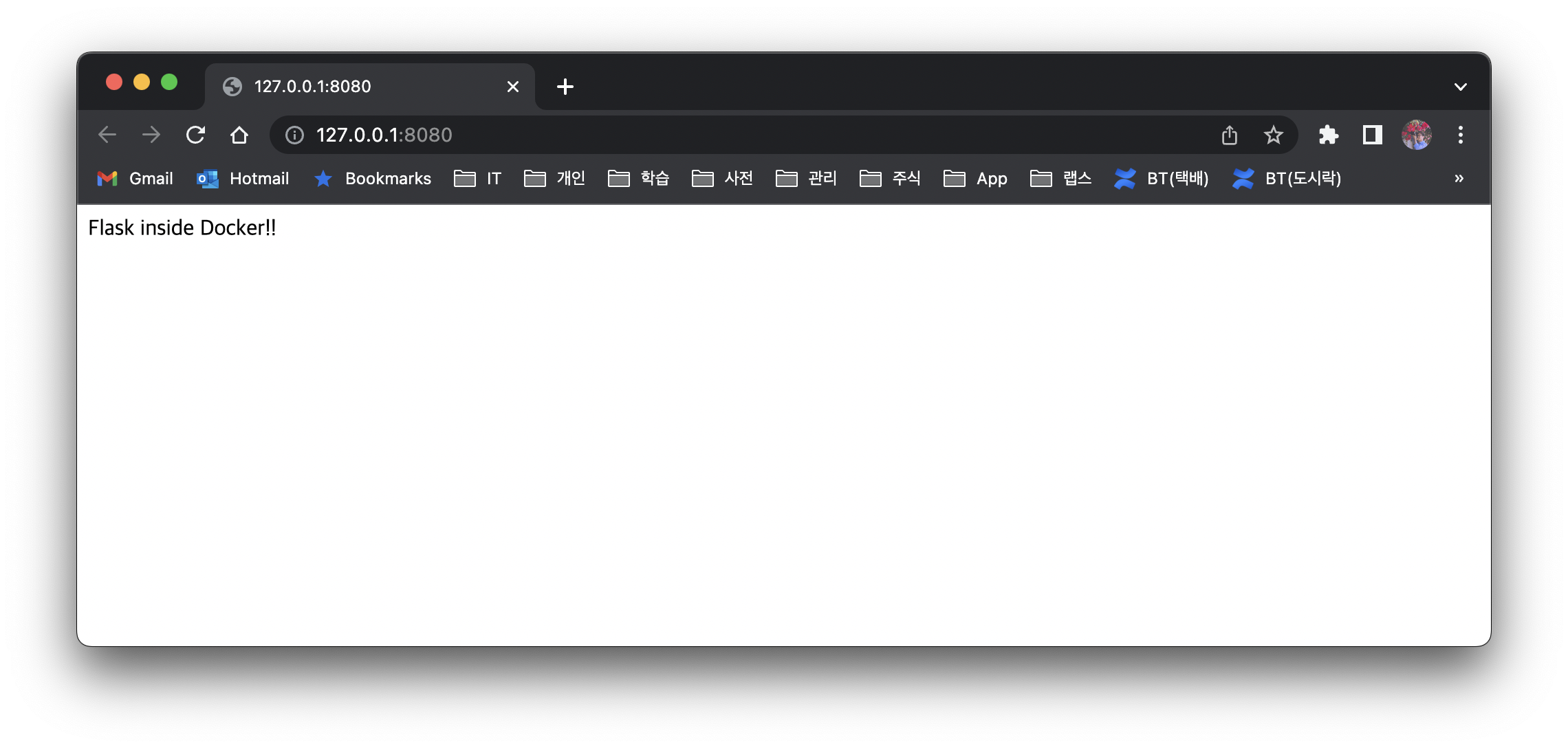
In addition to the version that prints to the console, let's also dockerize a web application. This is Python code that, after the server starts, prints "Flask inside Docker!!" when you access port 8080.
#!/usr/bin/env python3

from flask import Flask
import os

app = Flask(__name__)


@app.route("/")
def hello():
    return "Flask inside Docker!!"


if __name__ == "__main__":
    port = int(os.environ.get("PORT", 8080))
    app.run(debug=True, host='0.0.0.0', port=port)
2.1 Writing the Dockerfile
FROM python:3.8-slim-buster
COPY ../../../src/content/python /app
WORKDIR /app
RUN pip3 install -r requirements.txt

CMD ["python3, app/app.py"]
When you run the built Docker image in your local environment and access port 8080, you can confirm that it runs correctly.
$ make docker-push

$ docker run --rm --platform linux/x86-64 -p 8080:8080 kenshin579/advenoh:python-web-hello
* Serving Flask app 'app' (lazy loading)
 * Environment: production
   WARNING: This is a development server. Do not use it in a production deployment.
   Use a production WSGI server instead.
 * Debug mode: on
 * Running on all addresses (0.0.0.0)
   WARNING: This is a development server. Do not use it in a production deployment.
 * Running on http://127.0.0.1:8080
 * Running on http://172.17.0.2:8080 (Press CTRL+C to quit)
 * Restarting with stat
 * Debugger is active!
 * Debugger PIN: 878-906-556
2.2 Web Screen