1. Introduction
When I open my laptop to start studying or writing a blog post, the first place I go is usually internet news or YouTube videos rather than the actual studying or writing. And after watching for about 30 minutes, I tell myself "okay, time to start" and open Evernote.
Then, when I try to focus and get started, even after about 10 minutes I catch myself watching news or YouTube videos again. Study a bit, watch the news, repeat — and before I know it several hours have flown by. Maybe that's why writing one blog post a week never quite works out.
While reading PD Min-sik Kim's book Have You Memorized an Entire English Book?, I learned about the Pomodoro technique and decided to try applying it.
It's one of the time-management techniques mentioned in various books and online. The Pomodoro technique was proposed by Francesco Cirillo and uses a timer to focus on work for 25 minutes, followed by a 5-minute break.
There are plenty of related apps in the App Store and on phones, but I just wrote a shell script that's easy to run from the Mac terminal. And after 25 minutes pass, I wrote the script so that it shows a popup notification on the Mac and plays a sound effect as well.
2. Demo Screen
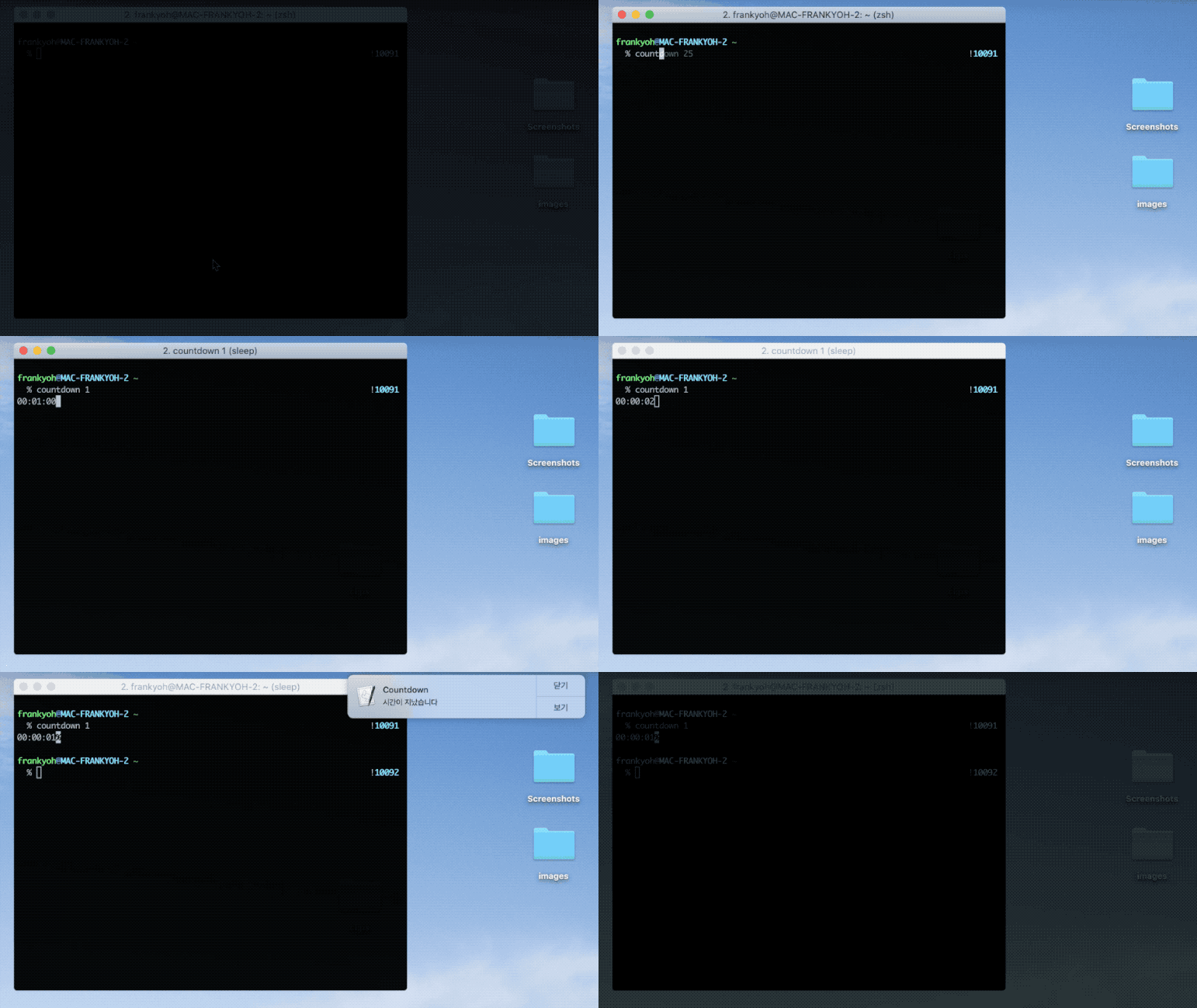
This is the screen where a popup runs after a 1-minute countdown.
3. Writing the Script and Configuring System Notifications
I worked in a Mac environment and used the zsh shell.
3.1 Editing the Shell Configuration File
Open your shell configuration file in a text editor, add the function below, and save.
$ code ~/.zshrc
https://gist.github.com/kenshin579/1b8dc3d9db35b6fee534569ec128e62b
To reload the modified shell configuration file in your current shell, reload it with the source command.
$ source ~/.zshrc
3.2 Copying the Sound File to the Library Folder
Copy the sound file to the user Library folder.
$ cp Clock-chimes.mp3 ~\_Library_Sounds
4. Configuring System Notifications
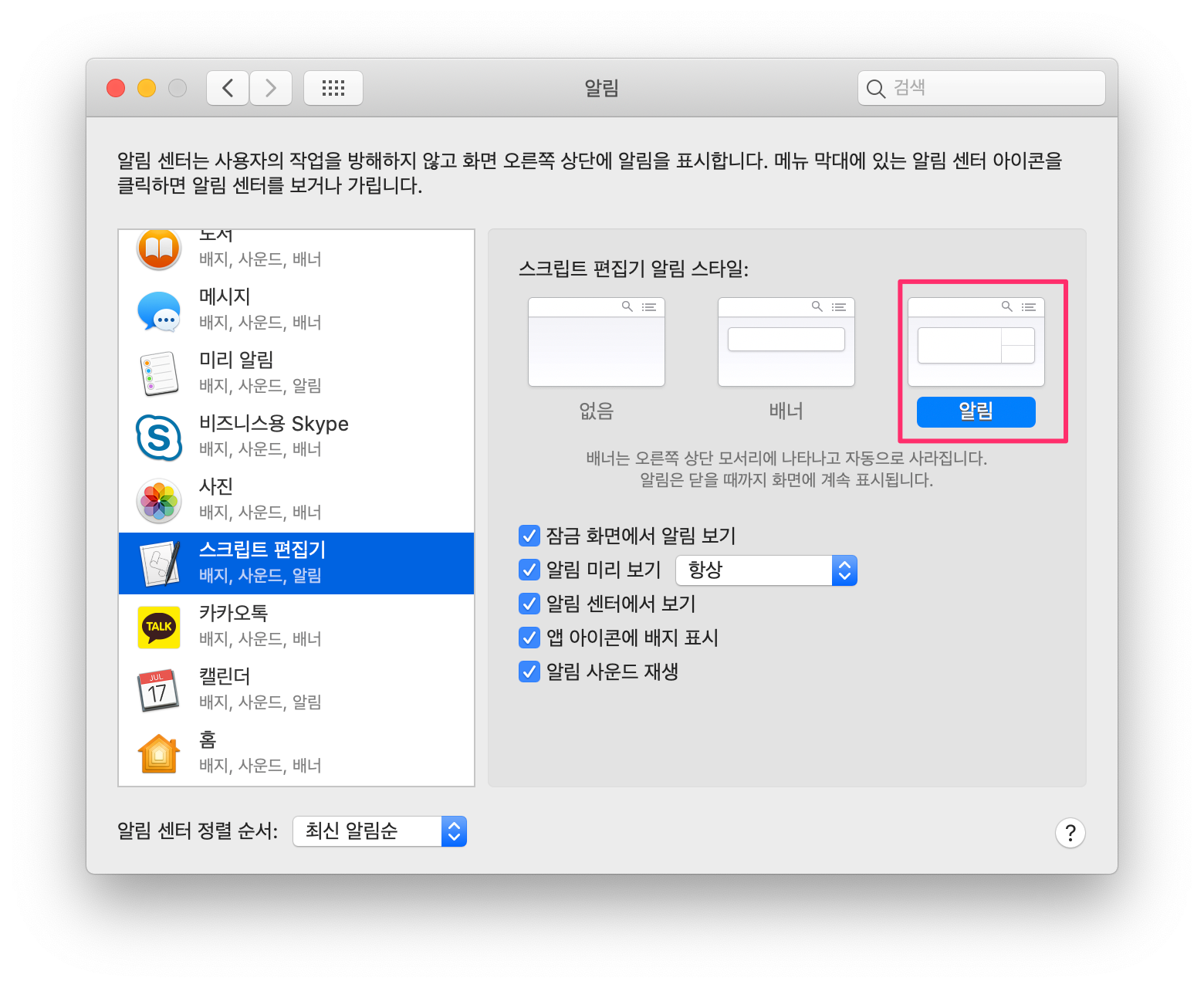
If you don't configure the notification separately, the default is the banner notification style, so the notification appears and then disappears automatically. As a result, if you're looking at another screen, you often won't even notice that a notification appeared. It's better to change it to a notification style that doesn't disappear automatically and requires you to click the close button.
Go to System Preferences > Notifications > select Script Editor, and change the notification style as shown below.
4.1 Running It
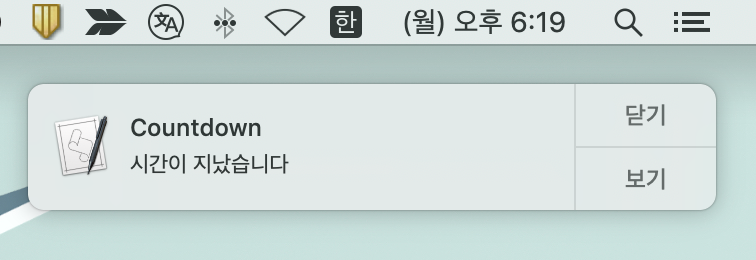
If you enter 1, a 1-minute countdown starts, and after 1 minute passes a popup window appears as shown below.
$ countdown 1
5. References
- Display Notification from Mac * https://code-maven.com/display-notification-from-the-mac-command-line