1. Overview
As AI-related services have become more widely used recently, the associated costs often become a burden. To address this, I'd like to introduce a way to build and use an LLM directly in a local environment. In this article, we cover how to install and use an LLM on macOS.
2. Installing an LLM
2.1 Installing and Verifying Ollama
First, install Ollama. Ollama is a tool that makes it easy to run an LLM locally.
2.1.1 Installation
Go to the website, download the build for your OS, and proceed with the installation.
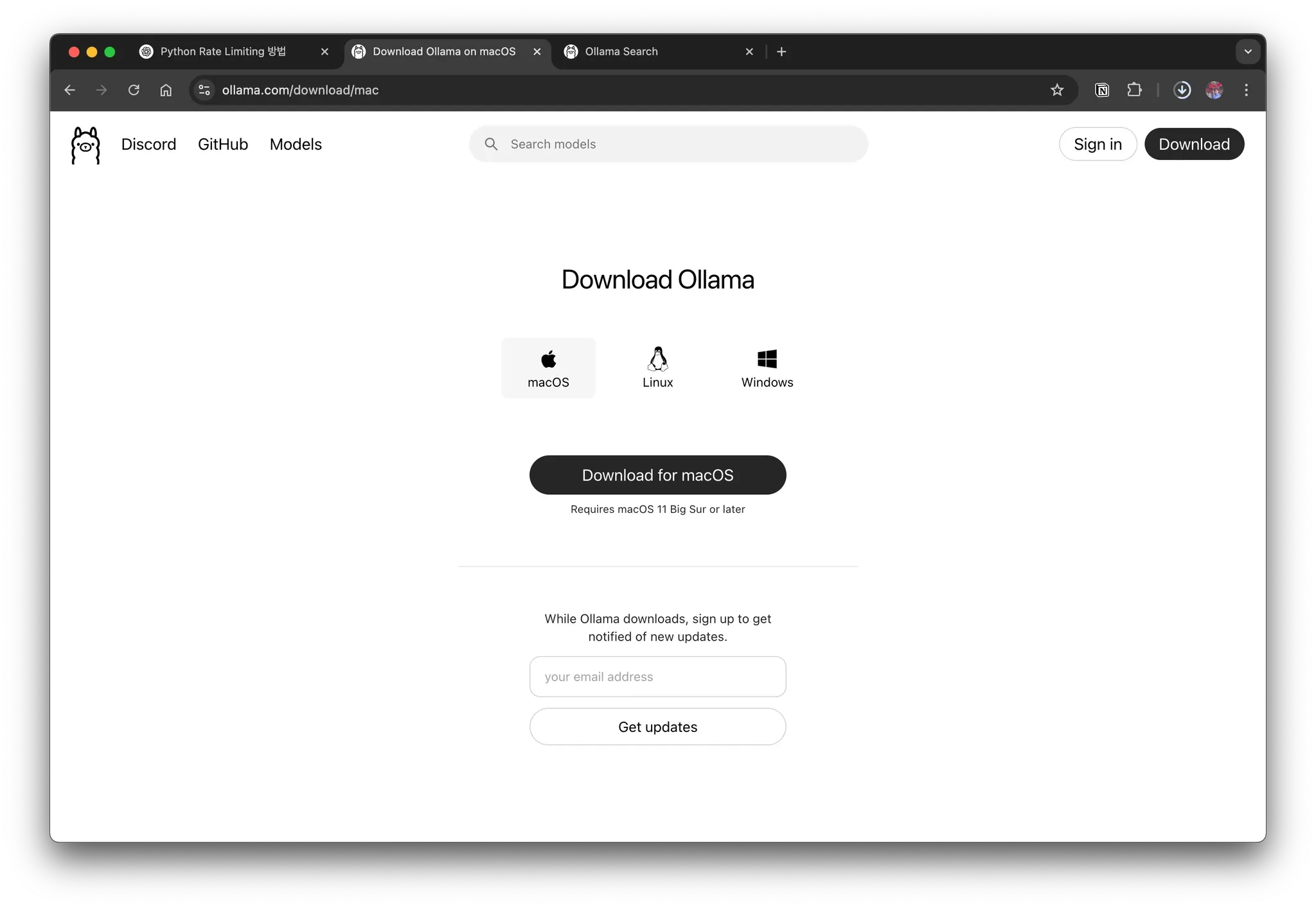
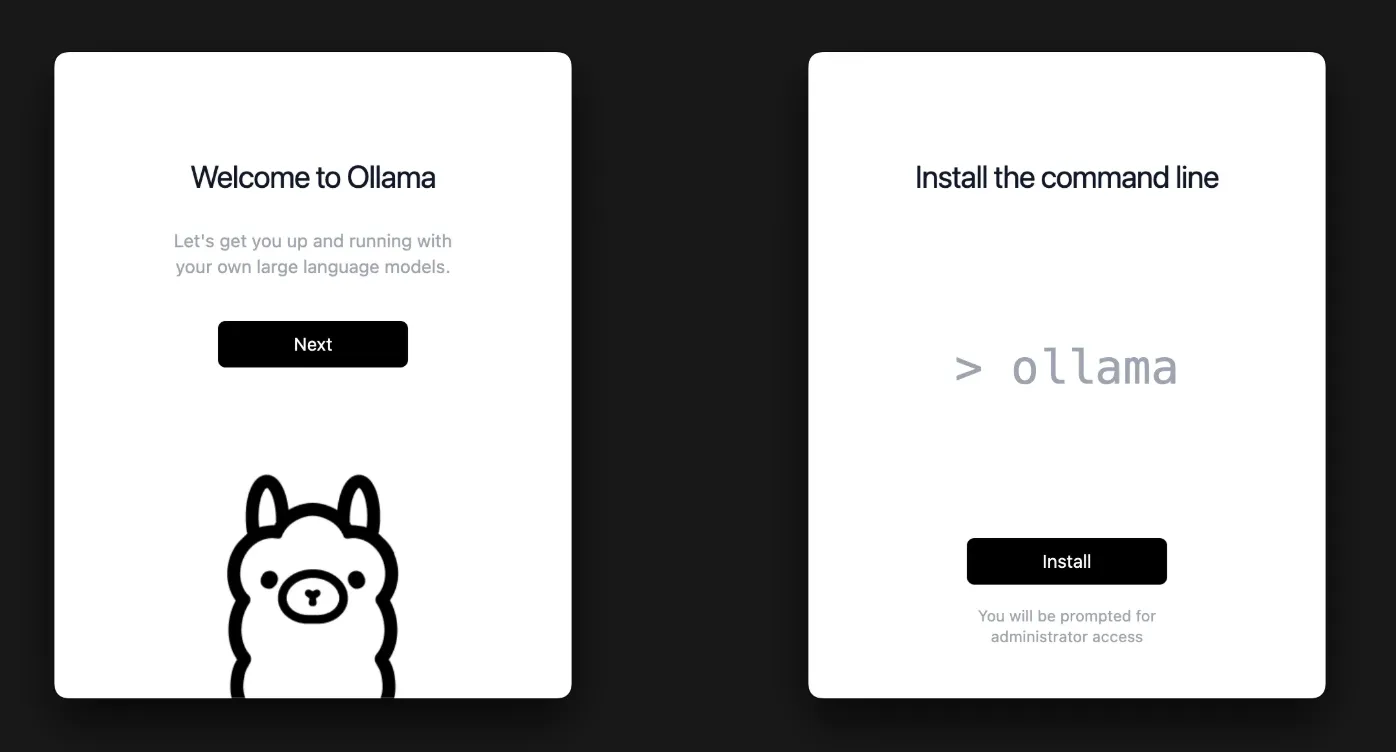
If you'd like to install it from the terminal using a command, you can install it with brew.
> brew install --cask ollama
Once the installation is complete, verify that it was installed correctly.
> ollama -v
ollama version is 0.6.2
Warning: client version is 0.4.7
2.1.2 Running Ollama
After installation, you can now download and run a model.
> ollama run llama3.2
pulling manifest
pulling dde5aa3fc5ff... 100% ▕█████████████████████████████████████████▏ 2.0 GB
pulling 966de95ca8a6... 100% ▕█████████████████████████████████████████▏ 1.4 KB
pulling fcc5a6bec9da... 100% ▕█████████████████████████████████████████▏ 7.7 KB
pulling a70ff7e570d9... 100% ▕█████████████████████████████████████████▏ 6.0 KB
pulling 56bb8bd477a5... 100% ▕█████████████████████████████████████████▏   96 B
pulling 34bb5ab01051... 100% ▕█████████████████████████████████████████▏  561 B
verifying sha256 digest
writing manifest
success
>>> Send a message (/? for help)
When you type what you want at the >>> LLM prompt, you can see that it gives you an answer.
>>> hi
How can I help you today?
3. Using the LLM
3.1 Open WebUI
Using only the CLI environment can be inconvenient, so you can also use Open WebUI. Open WebUI is a web-based UI that makes it easy to use Ollama.
3.1.1 Installation
There are several methods, but here we'll simply run it with Docker.
# Create a volume folder to be used by Docker
> docker run -d -p 3000:8080 --add-host=host.docker.internal:host-gateway -v open-webui:/app/backend/data --name open-webui --restart always ghcr.io/open-webui/open-webui:main
Now, if you access http://localhost:3000 in your web browser, you can use Ollama through the web UI.
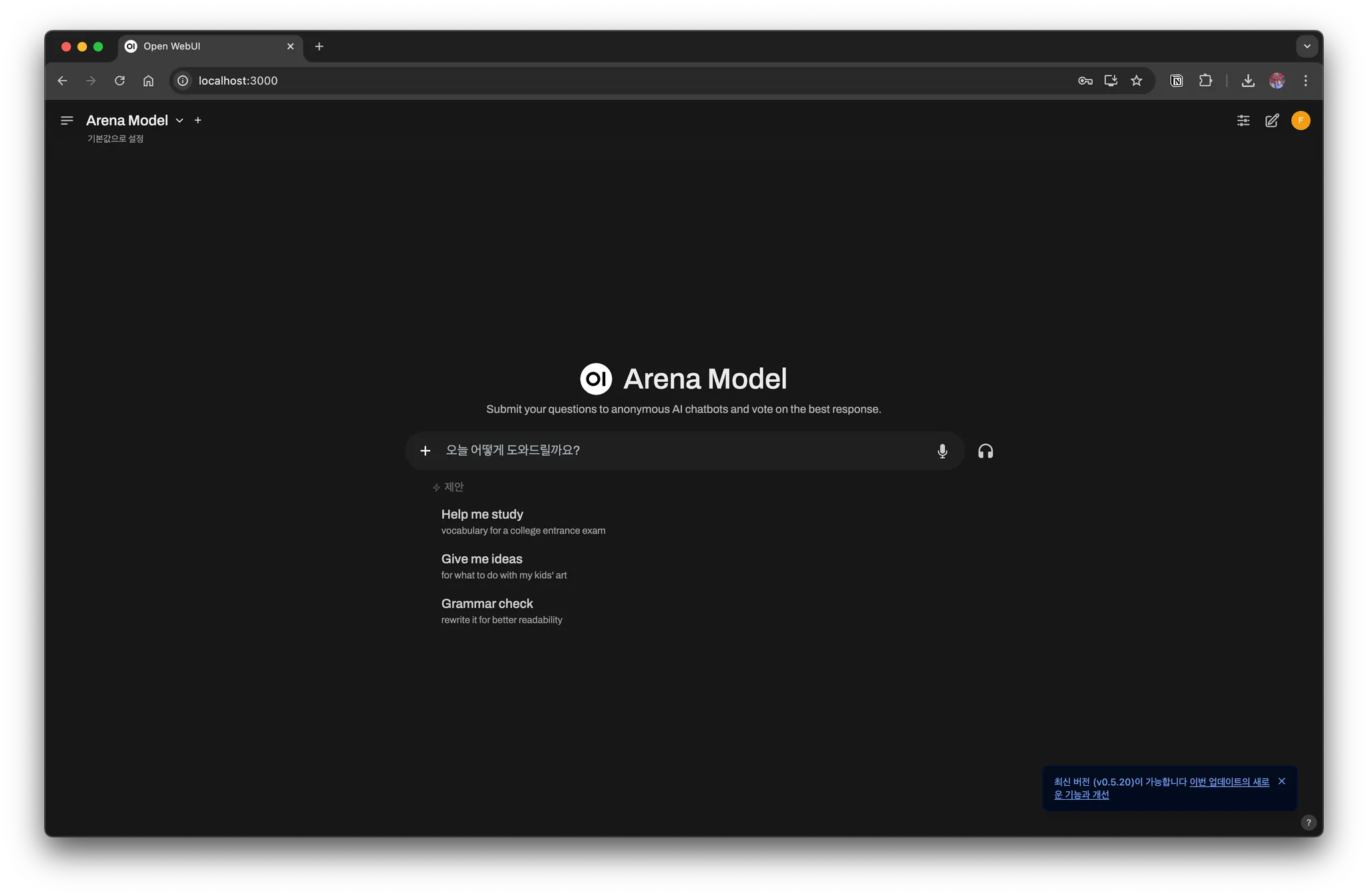
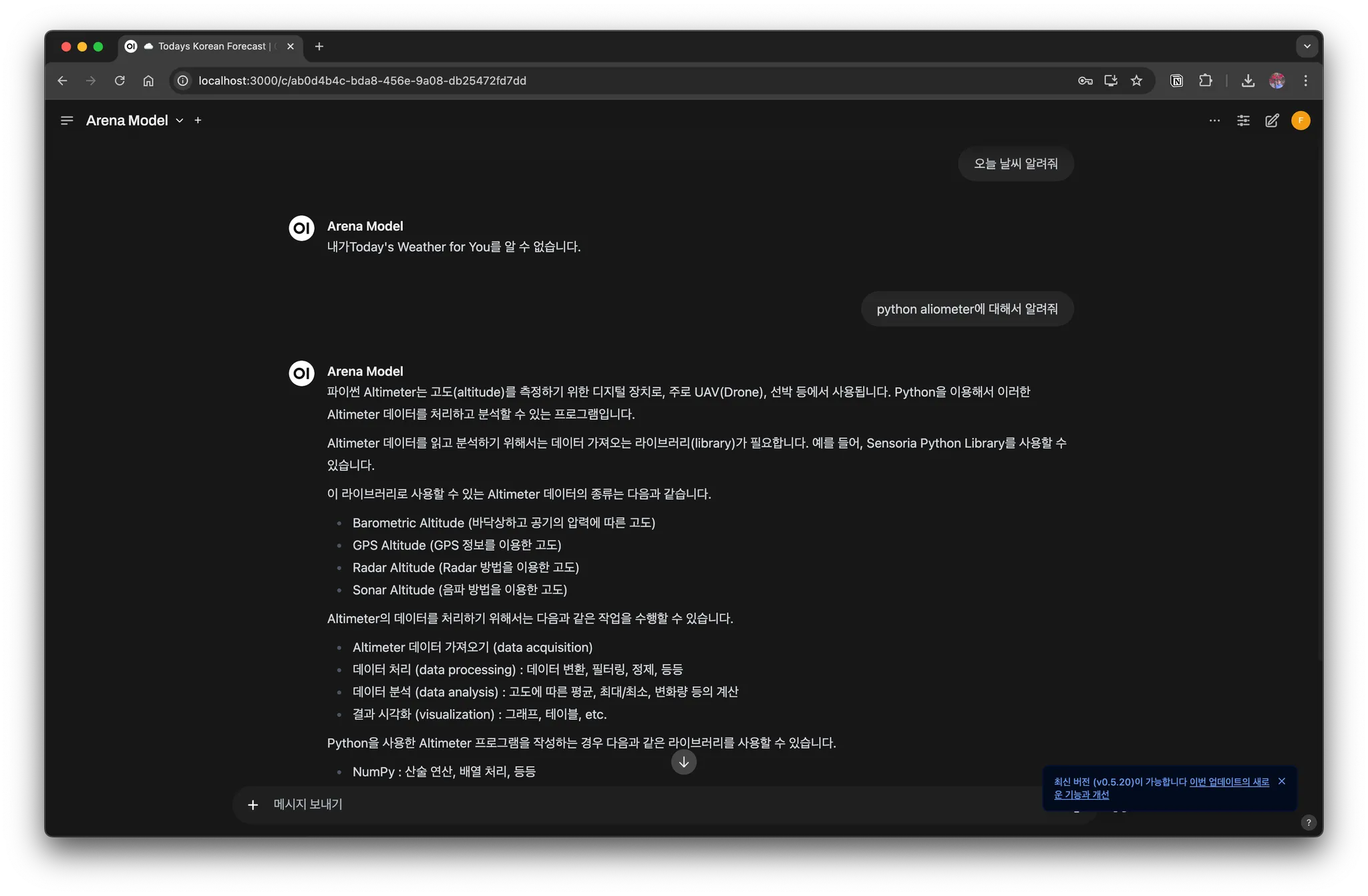
You can see that it looks similar to the ChatGPT web interface and works well.
3.2 Calling via the API
Ollama provides an API, so you can also call it directly using curl.
> curl -X POST "http://localhost:11434/api/generate" \
     -H "Content-Type: application/json" \
     -d '{"model": "llama3.2", "prompt": "Hello, what is AI?"}'
3.3 Calling from Python
For Python, a langchain library is provided, so you can use it to work with an LLM.
from unittest import TestCase

from langchain.llms import Ollama
from langchain.chains import LLMChain
from langchain.prompts import PromptTemplate
from langchain.callbacks.manager import CallbackManager
from langchain.callbacks.streaming_stdout import StreamingStdOutCallbackHandler

class Test(TestCase):
    def test_ollam_example(self):
        # Initialize the Ollama model (the default model is llama3.2, but other models can also be specified)
        llm = Ollama(
            model="llama3.2",  # Specify the model to use (e.g., llama3.2, mistral, gemma, etc.)
            callback_manager=CallbackManager([StreamingStdOutCallbackHandler()]),
        )

        # Call the model with a simple prompt
        response = llm("What is Python?")
        print(f"\\nCompleted response: {response}")
4. Collection of Ollama Commands
The ollama command provides various subcommands, and the most frequently used ones are as follows.
-
Check the list of models
> ollama list NAME ID SIZE MODIFIED llama3.2:latest a80c4f17acd5 2.0 GB 6 hours ago mistral:latest f974a74358d6 4.1 GB 3 months ago -
Add a new model
- You can find downloadable models on the library site.
> ollama pull gemma -
Remove a model
> ollama rm mistral -
Run a model directly in your local environment
> ollama run mistral
5. Conclusion
You've now learned how to build and use an LLM on macOS. With Ollama and Open WebUI, you can run AI models efficiently in a local environment, so I recommend trying it out for yourself.