1. Overview
1.1 What is Kind?
Kind (Kubernetes in Docker) is a tool that helps you run a Kubernetes cluster inside Docker containers. It's useful for quickly running and testing a Kubernetes cluster in a local environment.
1.2 Kind's Architecture
Kind works by running Kubernetes nodes as Docker containers. The following is the basic architecture of Kind.
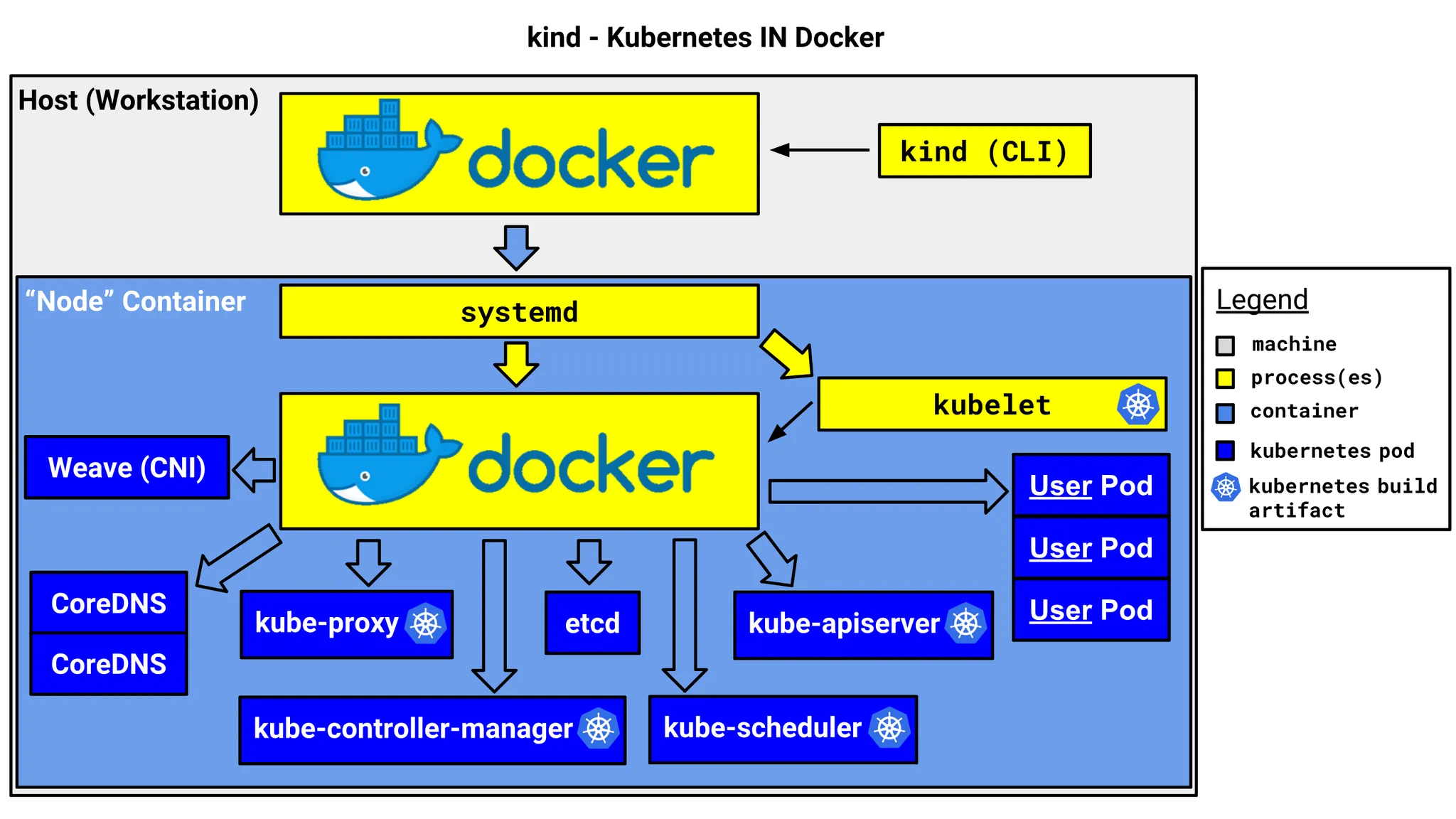
- Each node runs as a Docker container and drives the core Kubernetes components such as
kubelet,kube-proxy,etcd, andkube-apiserverinternally - It configures the network using a CNI and provides DNS using CoreDNS
- This approach is well suited for running a lightweight Kubernetes cluster in a local development environment, and is also widely used as a CI/CD testing environment
1.3 Differences from Other Kubernetes Tools
| Item | Kind | Minikube | Docker Desktop Kubernetes | Rancher Desktop |
|---|---|---|---|---|
| Execution method | Docker container based | Virtualization based (supports Docker, VirtualBox, etc.) | Uses Docker's built-in K8s feature | Can choose from multiple K8s distributions |
| Performance | Lightweight and fast | Supports various environments, somewhat heavy | Optimized on Mac/Windows | Somewhat heavy |
| LoadBalancer support | Not supported by default (additional setup needed) | Not supported by default (additional setup needed) | Provided by default | Provided by default |
| Use case | Development and testing environment | Development and local testing environment | Local development and simple testing | Practicing various K8s environments |
| Installation difficulty | Simple | Relatively easy | Included by default | Requires some setup |
2. Setting Up a Kubernetes Cluster with Kind in a Mac Local Environment
Now let's actually use Kind to build a Kubernetes cluster, deploy an Echo Server, and access it from outside. Personally, I've set up a Kubernetes cluster on a Mac Mini at home and access several applications on a port basis.
3. Prerequisites and Installing Kind
Kind can be run on macOS as well, and you can easily install it using Homebrew.
> brew install kind
> kind version
kind v0.27.0 go1.24.0 darwin/arm64
4. Creating a Kubernetes Cluster
Create the following Kind configuration file (kind-config.yaml) to set up the ports to access from outside.
kind: Cluster
apiVersion: kind.x-k8s.io/v1alpha4
nodes:
  - role: control-plane
    extraPortMappings:
      - containerPort: 30028
        hostPort: 30028
        protocol: TCP
      - containerPort: 30029
        hostPort: 30029
        protocol: TCP
      - containerPort: 30030
        hostPort: 30030
        protocol: TCP
Docker is essential when setting up a Kubernetes cluster with Kind. Now let's create the cluster.
# Run Docker Desktop
> open /Applications/Docker.app

# Create the cluster
> kind create cluster --config kind-config-nodeport.yaml
Creating cluster "kind" ...
 ✓ Ensuring node image (kindest/node:v1.32.2) 🖼
 ✓ Preparing nodes 📦
 ✓ Writing configuration 📜
 ✓ Starting control-plane 🕹️
 ✓ Installing CNI 🔌
 ✓ Installing StorageClass 💾
Set kubectl context to "kind-kind"
You can now use your cluster with:

kubectl cluster-info --context kind-kind

Have a nice day! 👋
Verify that the cluster was created successfully.
> kc cluster-info --context kind-kind                                                                                                              ✔  1341  10:32:22
Kubernetes control plane is running at <https://127.0.0.1:53837>

To further debug and diagnose cluster problems, use 'kubectl cluster-info dump'.

> kc get nodes                                                                                                                                     ✔  1344  10:44:31
NAME                 STATUS   ROLES           AGE   VERSION
kind-control-plane   Ready    control-plane   12m   v1.32.2
5. Deploying the Echo Server Application
Deploy an Echo Server to the cluster and verify that it can be accessed from outside. Here is the Kubernetes YAML file (echo-server.yaml) that deploys the Echo Server.
apiVersion: apps/v1
kind: Deployment
metadata:
  name: echo-server
spec:
  replicas: 1
  selector:
    matchLabels:
      app: echo-server
  template:
    metadata:
      labels:
        app: echo-server
    spec:
      containers:
      - name: echo-server
        image: ealen/echo-server
        ports:
        - containerPort: 80
---
apiVersion: v1
kind: Service
metadata:
  name: echo-server
spec:
  type: NodePort
  selector:
    app: echo-server
  ports:
    - protocol: TCP
      port: 80
      targetPort: 80
      nodePort: 30028
Create the server from the manifest with the kubectl apply command.
> kubectl apply -f echo-server-nodeport.yaml
deployment.apps/echo-server created
service/echo-server created
5.1 Accessing the Echo Server from Outside
Verify that the Echo Server was deployed successfully.
> kubectl get pods
NAME                           READY   STATUS    RESTARTS   AGE
echo-server-65c776974c-fm654   1/1     Running   0          6d5h

> kubectl get svc echo-server
NAME          TYPE        CLUSTER-IP     EXTERNAL-IP   PORT(S)        AGE
echo-server   NodePort    10.96.81.130   <none>        80:30028/TCP   6d5h
kubernetes    ClusterIP   10.96.0.1      <none>        443/TCP        6d5h
Let's call the API on the Echo Server with curl.
> curl <http://localhost:30028>
{"host":{"hostname":"localhost","ip":"::ffff:10.244.0.1","ips":[]},"http":{"method":"GET","baseUrl":"","originalUrl":"/","protocol":"http"},"request":{"params":{"0":"/"},"query":{},"cookies":{},"body":{},"headers":{"host":"localhost:30080","user-agent":"curl/8.7.1","accept":"*/*"}},"environment":{"PATH":"/usr/local/sbin:/usr/local/bin:/usr/sbin:/usr/bin:/sbin:/bin","HOSTNAME":"echo-server-65c776974c-fm654","NODE_VERSION":"20.11.0","YARN_VERSION":"1.22.19","KUBERNETES_SERVICE_HOST":"10.96.0.1","KUBERNETES_SERVICE_PORT":"443","KUBERNETES_PORT":"tcp://10.96.0.1:443","KUBERNETES_PORT_443_TCP_PROTO":"tcp","ECHO_SERVER_SERVICE_PORT":"80","ECHO_SERVER_PORT_80_TCP_ADDR":"10.96.81.130","KUBERNETES_PORT_443_TCP":"tcp://10.96.0.1:443","KUBERNETES_PORT_443_TCP_PORT":"443","ECHO_SERVER_PORT":"tcp://10.96.81.130:80","ECHO_SERVER_PORT_80_TCP_PROTO":"tcp","KUBERNETES_PORT_443_TCP_ADDR":"10.96.0.1","ECHO_SERVER_PORT_80_TCP":"tcp://10.96.81.130:80","ECHO_SERVER_PORT_80_TCP_PORT":"80","KUBERNETES_SERVICE_PORT_HTTPS":"443","ECHO_SERVER_SERVICE_HOST":"10.96.81.130","HOME":"/root"}}
6. Conclusion
In this post, we covered how to set up a Kubernetes cluster on a Mac using Kind, deploy an Echo Server, and access it from outside. Similar to other Kubernetes tools, we were able to confirm that creating a cluster and deploying an application are both very easy.
Now go ahead and test various Kubernetes applications using Kind! 🚀