1. Overview
After recently reinstalling my MacBook, I ran into a problem where Korean folder and file names appeared garbled while using iTerm2. In this post, I'll show you how to fix the garbled Korean text issue in iTerm2.
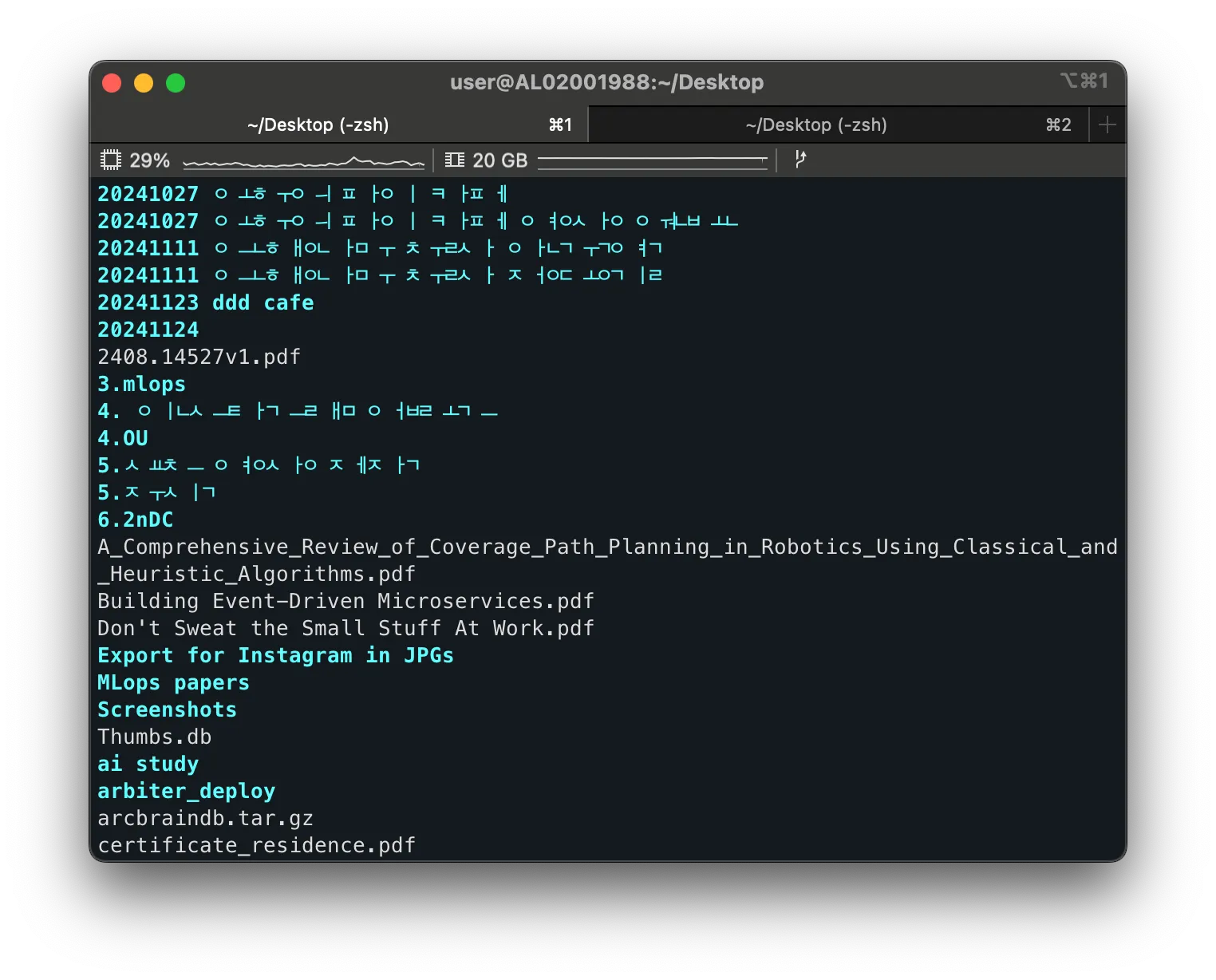
2. Garbled Korean Text - Changing iTerm2 Settings
Garbled Korean text in iTerm2 is mainly caused by two things: the Unicode Normalization Format setting and the font choice. You can fix the problem by following the steps below.
2.1 Changing the Unicode Normalization Format
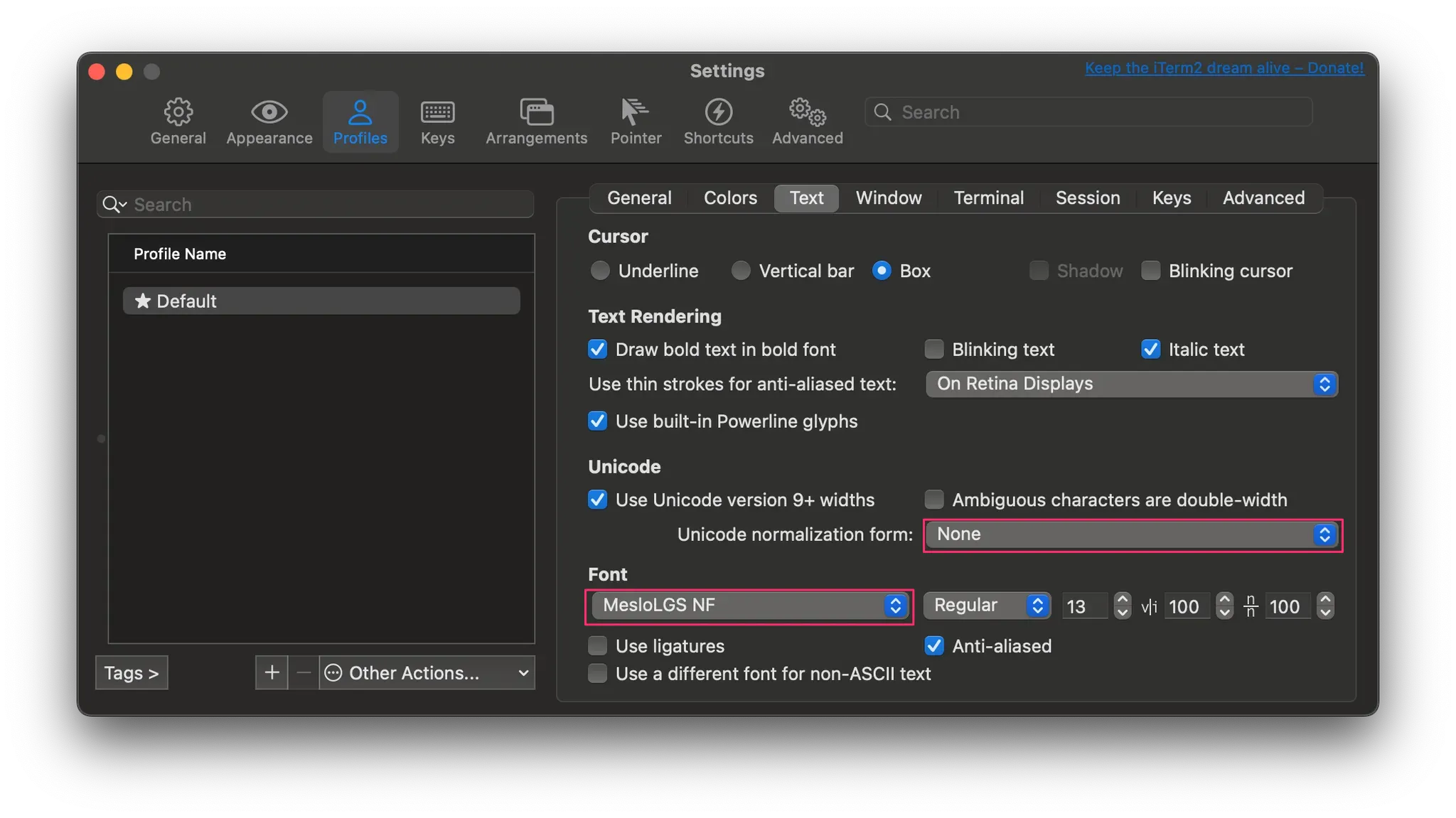
iTerm2 handles character encoding differently depending on the Unicode Normalization Format setting. The default setting isn't suitable for handling Korean, so you need to change it.
Launch iTerm2 and change the relevant setting in the Profiles > Text tab.
- Change
None→NFC
NFC(Normalization Form C) is the appropriate setting for handling composed Korean characters, and it displays Korean file and folder names correctly.
2.2 Changing the Font
The font used in iTerm2 also affects whether Korean displays properly. To display Korean correctly, it's best to use the MesloLGS NF font.
- Select
MesloLGS NFin the Font settings
If
MesloLGS NFisn't in your font list, you can download and install it through this link.
3. Wrapping Up
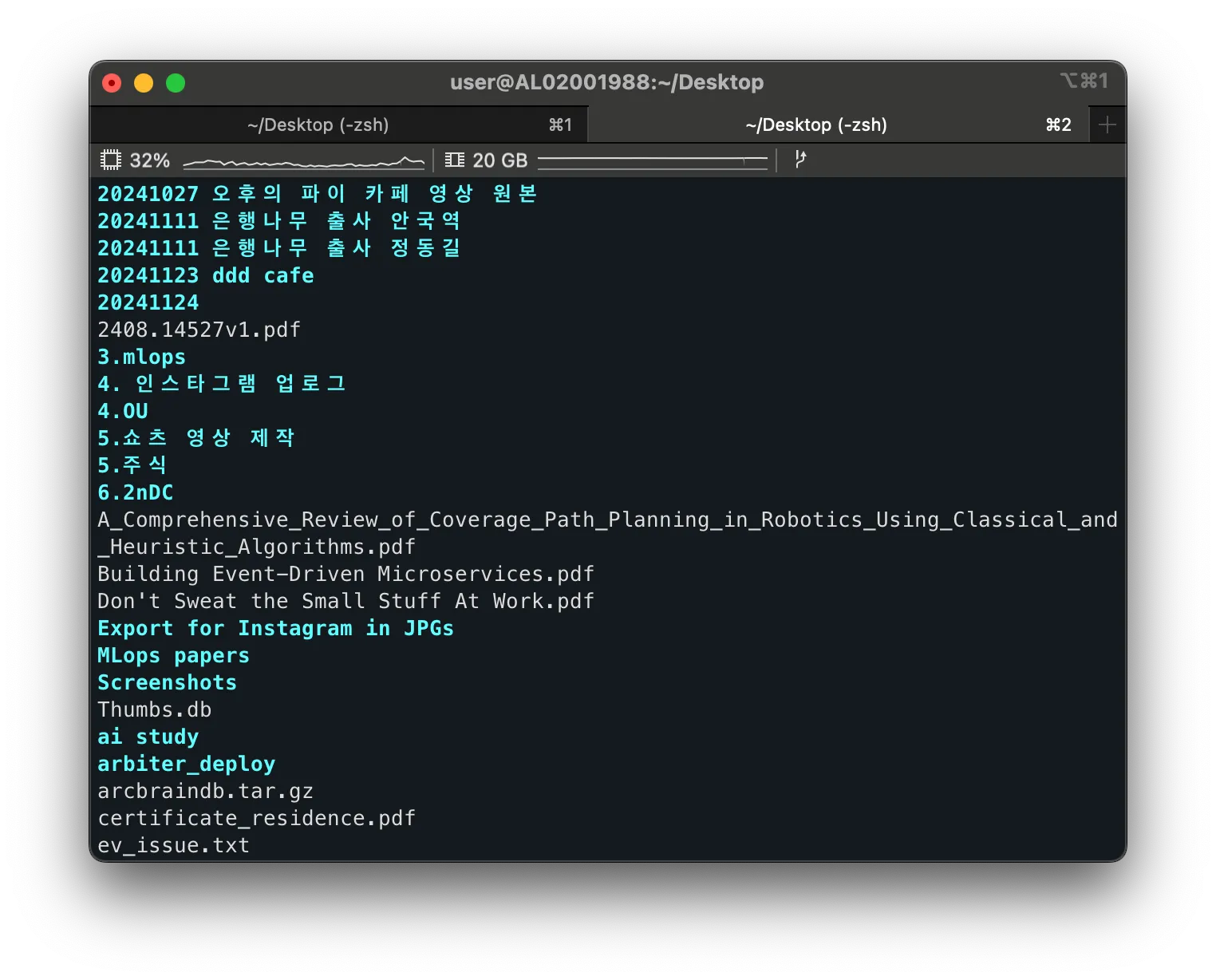
By following the steps above, I was able to easily fix the garbled Korean text problem in iTerm2.