1. Overview
Every time I connected to my company VPN, I received an OTP (one-time password) by text message and had to type it in manually — a tedious task I repeated every day. But on a coworker's recommendation, I automated this process using an Alfred Workflow, and life got a little easier.
In this post, I'll introduce the Alfred Workflow 2FA Read Code that I used as the automation tool, and explain how to use it to automatically extract and enter 2FA codes from iMessage.
Alfred Workflow is one of the powerful features of the
Alfredapp, which boosts productivity on macOS by helping you automate repetitive tasks.
1.1 What Is 2FA Read Code?
2FA Read Code is an Alfred Workflow that automatically finds and copies OTP codes received in iMessage. With it, you can easily complete authentication for VPN logins, website 2FA entry, and more.
2. How to Use 2FA Read Code
2.1 Requirements
To use this Workflow, you need to meet the following conditions.
- A user who uses both an iPhone and a MacBook
iMessagesyncing enabled
This way, the 2FA text messages you receive on your iPhone can also be seen on your Mac, and the workflow can read them automatically.
2.2 Preparations Before Use
To use the 2FA Read Code Workflow, you need Node.js and SQLite3. You can install them easily with brew.
2.2.1 Installing Node.js and SQLite3 with Homebrew
Enter the following command in the terminal.
> brew install node sqlite3
Once installation is complete, the 2FA Read Code Workflow is ready to work properly.
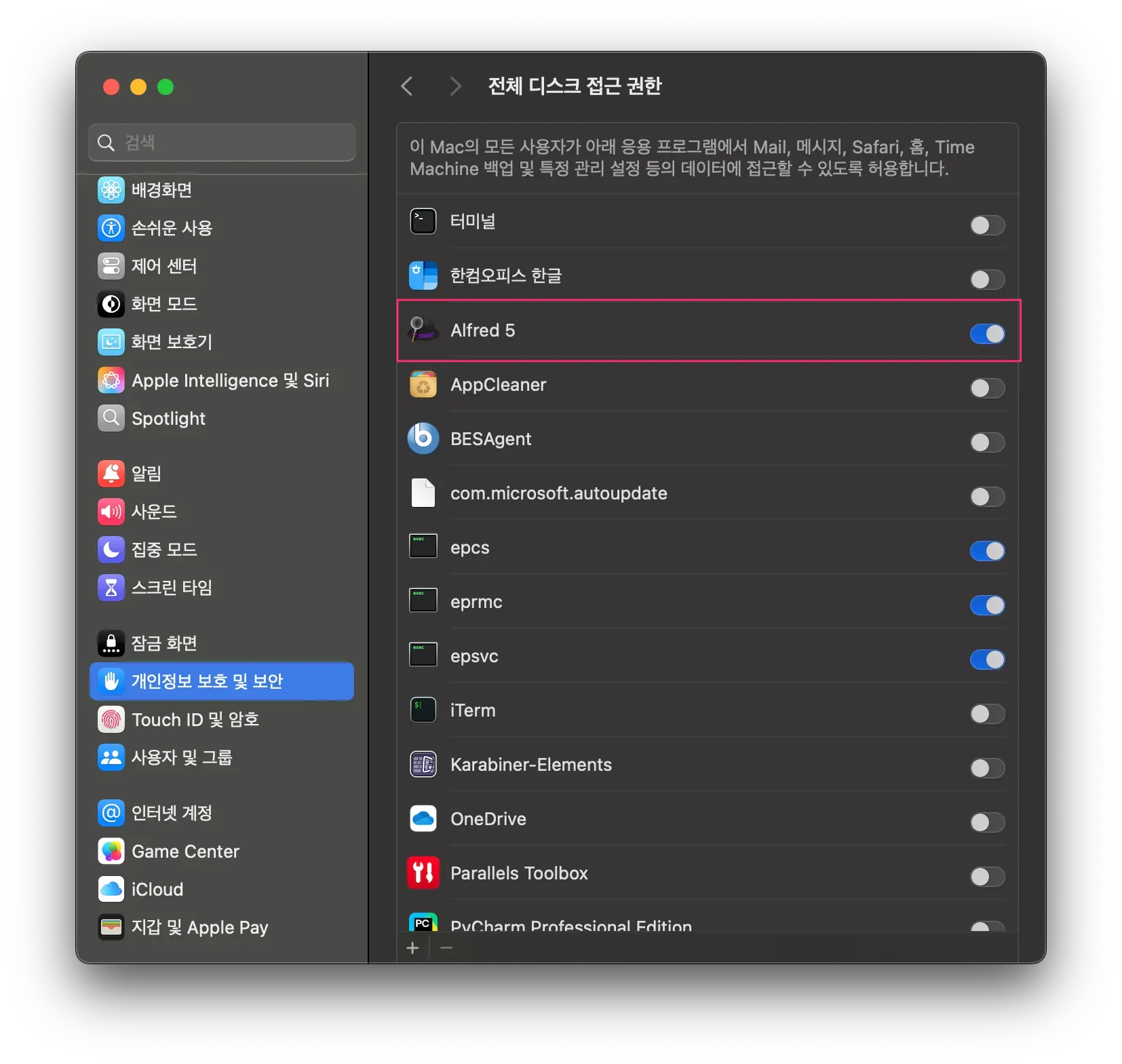
2.2.2 Setting Alfred Disk Permissions
The 2FA Read Code Workflow needs disk permissions, so grant Alfred disk access in the setting below.
3. Installing the 2FA Read Code Workflow
Here's how to install the 2FA Read Code Workflow.
- Download the workflow
- Go to the 2FA Read Code download page and click the
Install in Alfredbutton on the site
- Go to the 2FA Read Code download page and click the
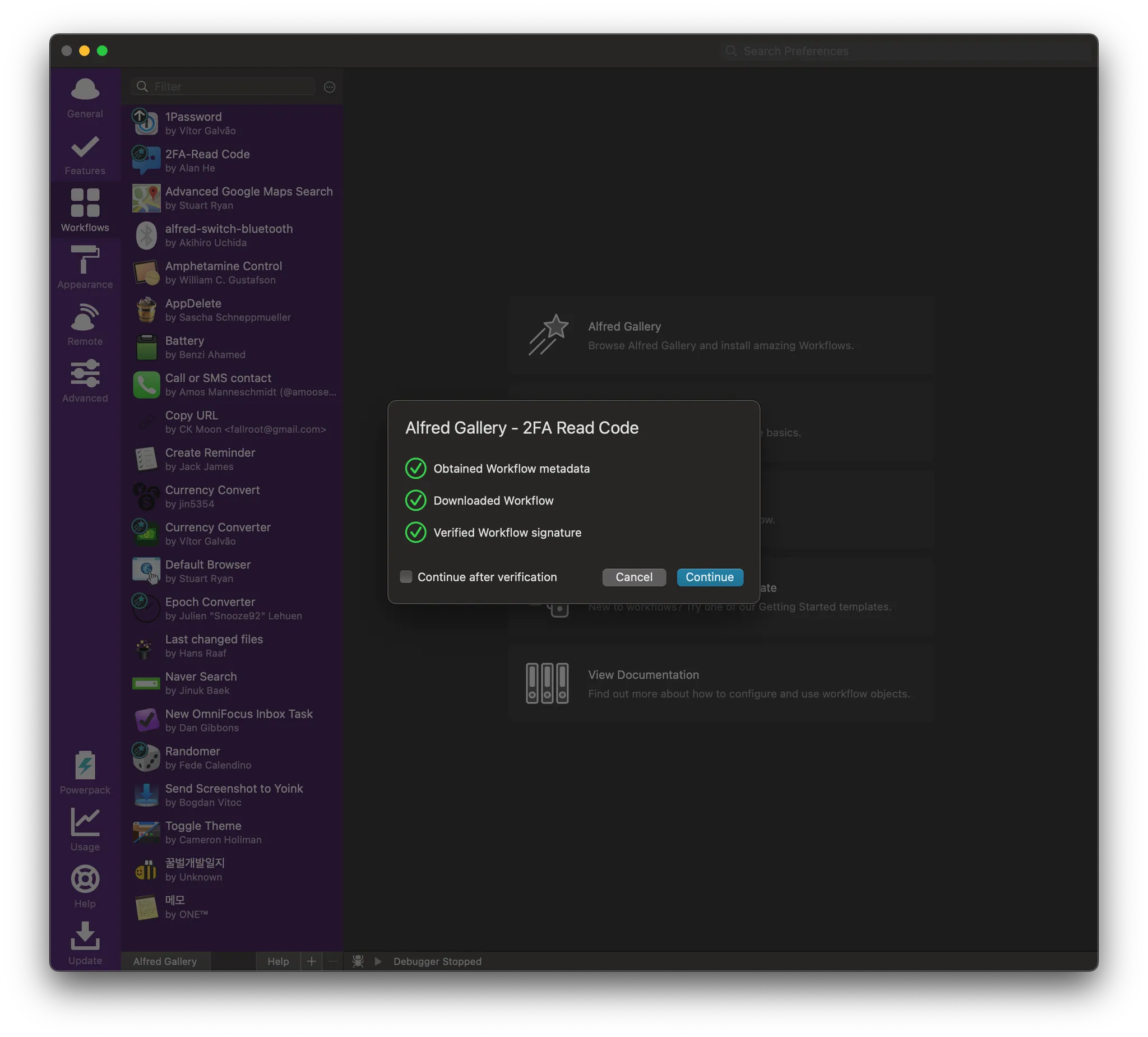
- Install the Workflow in
Alfred
- When
Alfredlaunches, click theInstallbutton to add the workflow
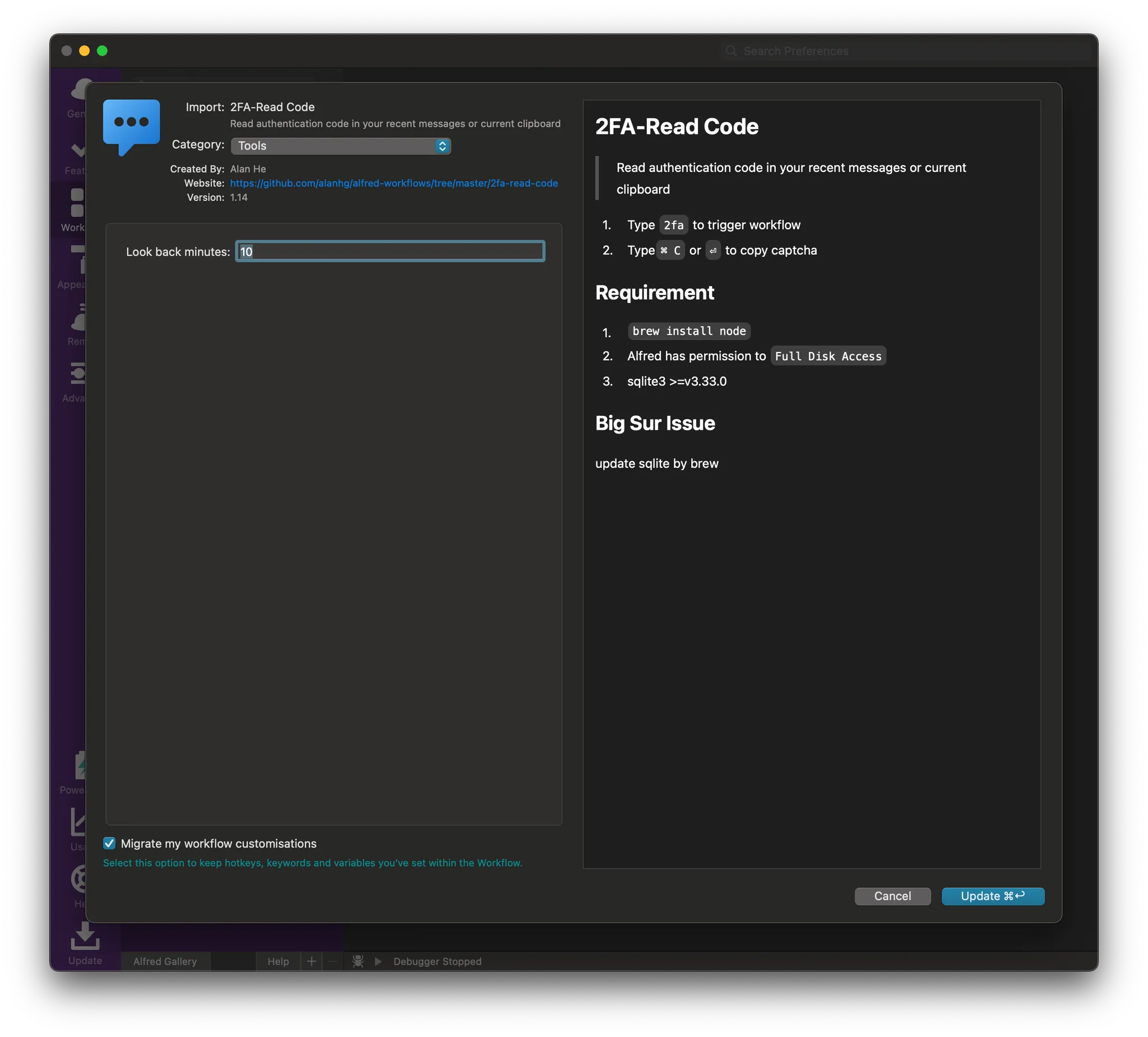
Now 2FA Read Code is ready to use in Alfred.
3.1 How to Use the Workflow
Now let's look at how to actually use 2FA Read Code to enter an OTP automatically.
- Launch the company
VPNclient- Launch the
VPNclient and enter your username/password
- Launch the
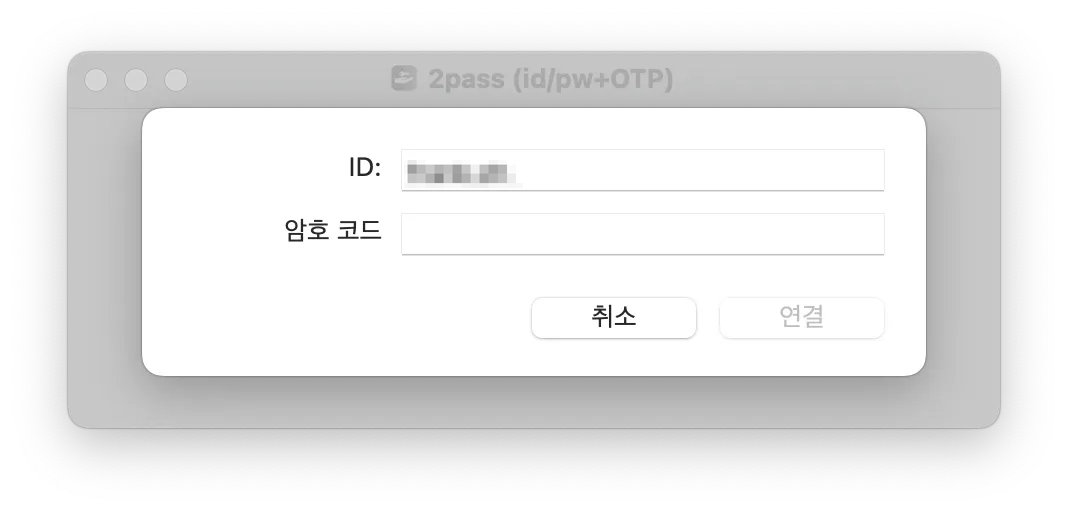
It's waiting for the OTP. Let's use 2FA.
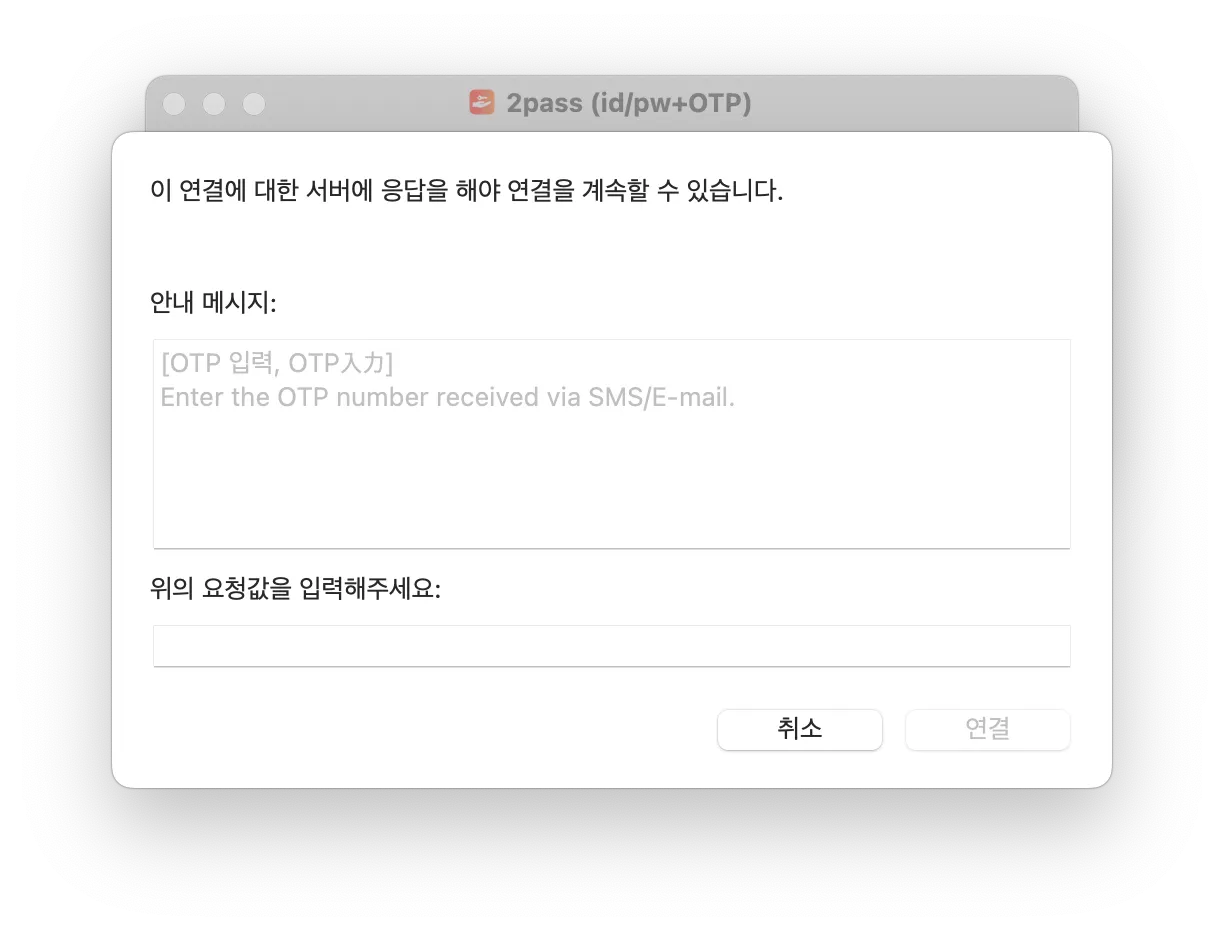
- At the
OTPentry step, launchAlfred
- Launch
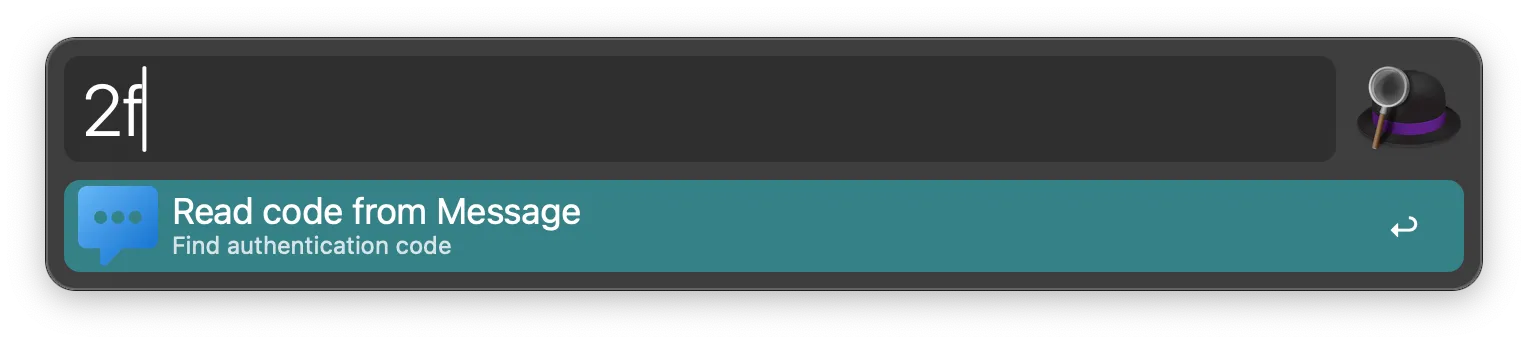
Alfred(⌘ + Spaceor your configured shortcut). - Type
2faand pressEnter, and the most recent 2FA code received iniMessageis automatically copied
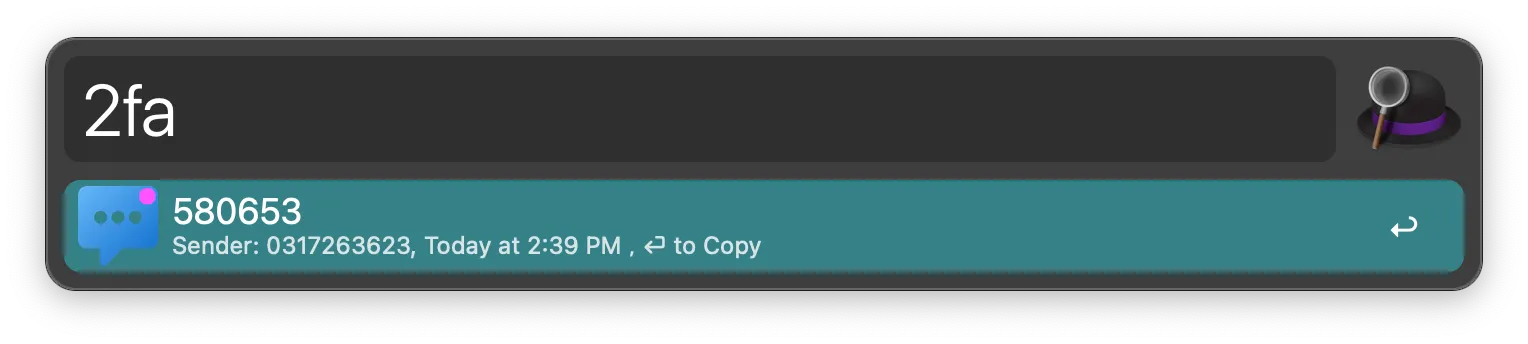
- Paste the copied 2FA code
- When the OTP entry field appears in the
VPNclient, enter the code with⌘ + V(paste)
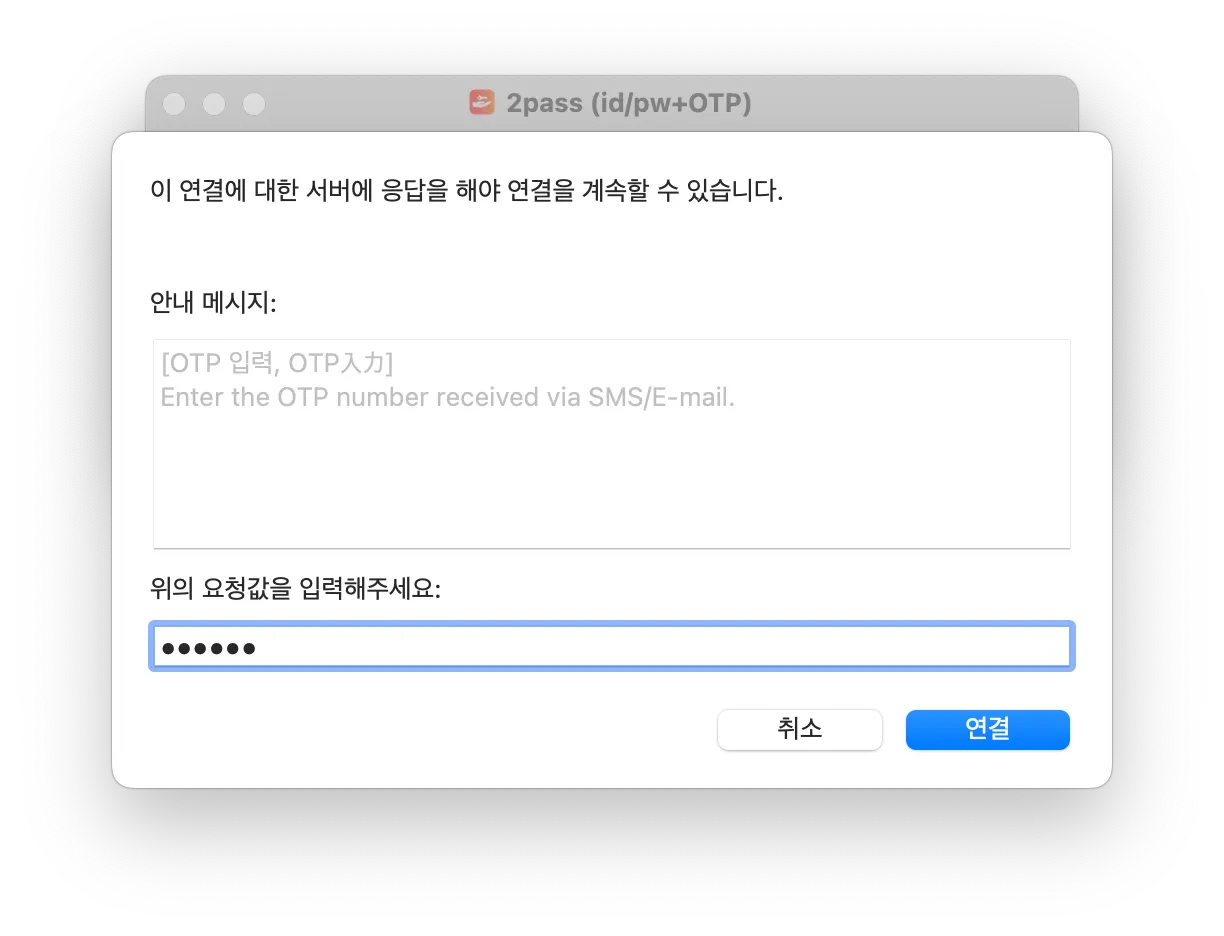 Now you no longer need to check your phone directly and type the OTP in manually!
4. Wrapping Up
Using the 2FA Read Code Workflow, you can automate OTP code entry and make the login process much more convenient. Especially if you're a user who has to connect to a VPN or complete 2FA authentication every day, this simple automation alone can greatly speed up your work.
If you want to boost your productivity while using a MacBook, give Alfred Workflow a try!
Once again, thank you to the coworker who introduced this to me.